| Myth | Reality |
|---|---|
| A strong Wi-Fi password is enough to protect my work laptop at home. | A strong password protects the network perimeter, but does nothing to stop a compromised smart TV, game console, or a family member’s infected laptop from reaching your work device once both are on the same flat network. |
| My company VPN protects all my traffic all the time. | Many corporate VPNs use split tunneling, which only routes traffic destined for company resources through the VPN, leaving general web browsing exposed to your home network and internet service provider. |
| If my employer issued the laptop, home network security is not my responsibility. | Employer-issued endpoint protection covers the device itself, but the home network it connects through, including the router, other connected devices, and Wi-Fi configuration, remains the remote worker’s responsibility in almost every remote work policy. |
| Segmenting my network requires enterprise-grade equipment. | Most consumer routers sold in the last few years support guest networks and VLAN-like separation features that can meaningfully segment work traffic from personal devices without additional hardware spend. |
Why Remote Work Changes Home Network Security Requirements
Standard home Wi-Fi hardening advice, strong passwords, WPA3 encryption, and a guest network for visitors, remains necessary, but it was never designed with a scenario in mind where a device holding sensitive company data sits permanently on the same network as smart TVs, gaming consoles, children’s tablets, and any number of other, less-trusted IoT devices. When you work from home, your home network effectively becomes an extension of your employer’s network perimeter, and it needs to be treated that way. This guide focuses specifically on what changes when a home network has to carry corporate traffic securely, rather than repeating the general Wi-Fi hardening steps covered elsewhere.
The 12 Steps
1. Segment Work Devices Onto Their Own Network
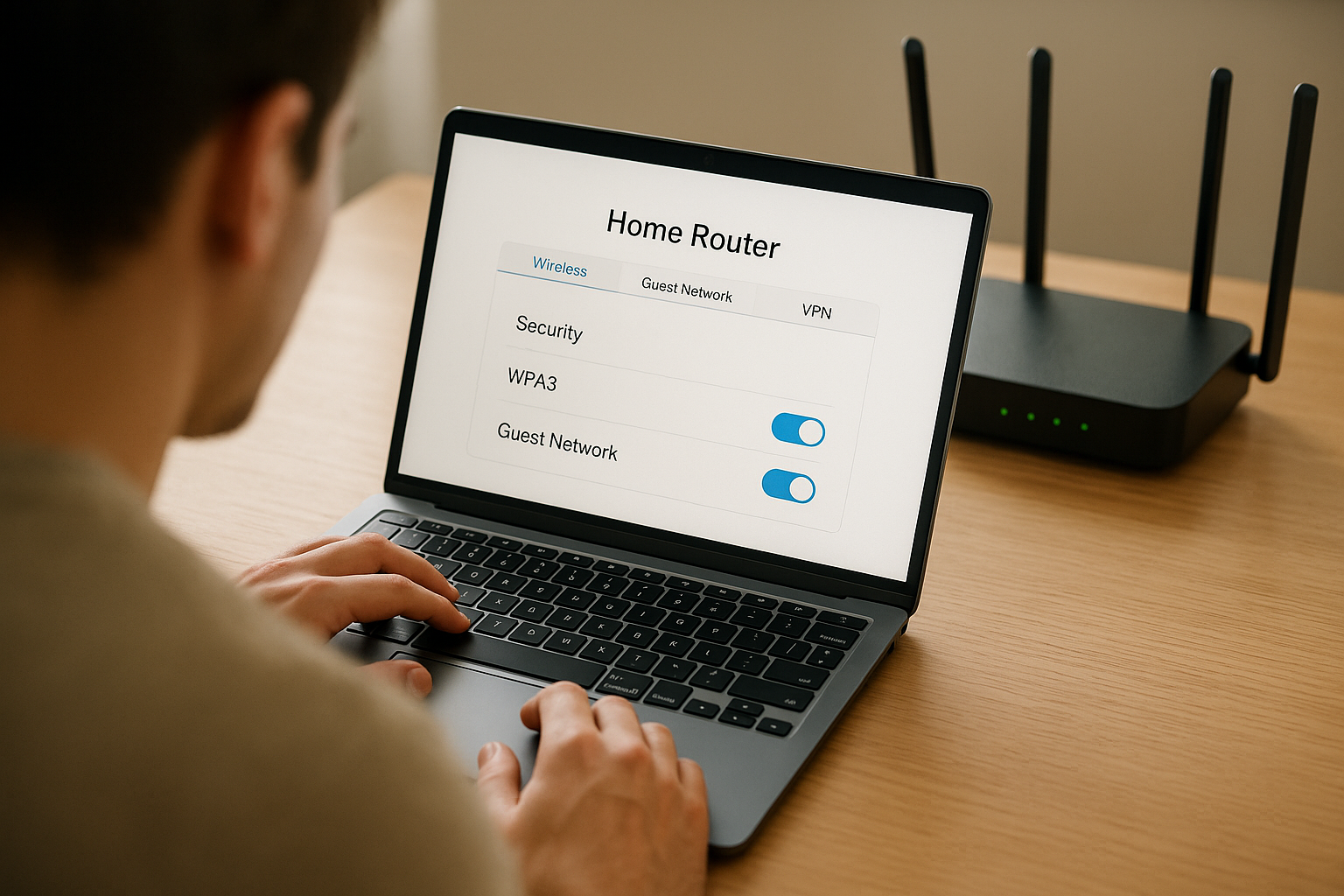
Most consumer routers released in the past few years support at least one additional SSID beyond the primary and guest networks. Create a dedicated network for work devices only, separate from both your main household network and your guest network. This single change does more to contain a compromise than almost any other step, because it prevents an infected personal device, such as a smart TV running outdated firmware, from ever reaching your work laptop on the local network.
2. Use VLANs if Your Router Supports Them
If your router or a prosumer replacement supports VLAN tagging, such as Ubiquiti, TP-Link Omada, or pfSense-based setups, configure a dedicated VLAN for work traffic with firewall rules that block it from initiating connections to other VLANs on the network. This is a stronger form of segmentation than SSID separation alone, since it also controls traffic at the routing layer, not just the wireless layer.
3. Understand Your Company VPN’s Tunneling Mode
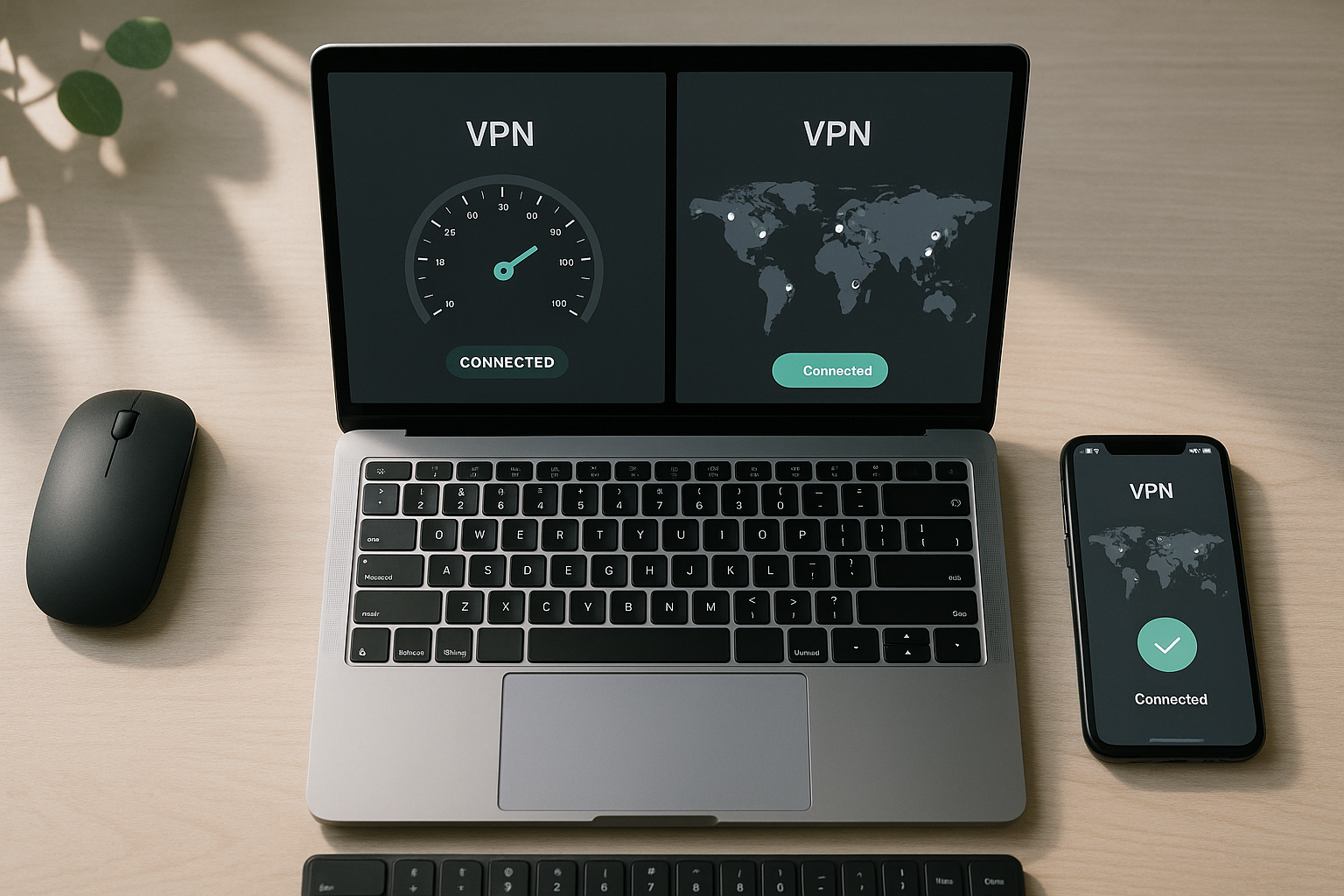
Ask your IT department whether your VPN uses full tunneling, which routes all traffic through the corporate network, or split tunneling, which only routes traffic destined for company resources. Split tunneling is common because it reduces load on corporate VPN concentrators and improves the performance of general browsing, but it means your general internet activity is not inspected or protected by corporate security tools. Know which mode you are in so you understand what is and is not being protected.
4. Never Disable VPN Client Software, Even Temporarily
Some remote workers disable the VPN client to fix a streaming speed issue or a video call glitch, intending to turn it back on later. This habit creates windows where company data may sync or sensitive resources may be reachable outside the intended secure tunnel. If the VPN client is interfering with a specific application, report it to IT rather than disabling protection as a workaround.
5. Apply Employer Mobile Device Management Policies Fully
If your employer requires mobile device management or endpoint detection and response software on your work laptop, install and maintain it completely, including allowing the required updates and compliance checks. Blocking or delaying these updates to avoid a restart during work hours is one of the most common ways devices fall out of compliance without the user realizing it.
6. Keep the Router Firmware Updated
An outdated router is a soft target that can undermine every other control on this list. Enable automatic firmware updates if your router supports them, or set a recurring monthly reminder to check the manufacturer’s admin panel manually.
7. Disable Remote Administration on the Router
Unless you specifically manage the router from outside the home network, disable any remote or cloud-based administration feature. This closes a path attackers use to reach router settings directly from the internet, bypassing local network protections entirely.
8. Use a Hardware or Software Firewall on the Work Device Itself
Segmentation reduces exposure but should not be your only layer. Keep the built-in firewall active on your work laptop so that even a device that somehow reaches your work network segment cannot freely probe open ports on the machine itself.
9. Secure Smart Home and IoT Devices Separately
Smart plugs, cameras, thermostats, and voice assistants are common entry points because they are rarely patched by users and often ship with weak default settings. Place them on the guest network or a dedicated IoT SSID, never on the same segment as work devices, and change default credentials on each one.
10. Lock Down Physical Access to Work Hardware
Company policy on securing employer-issued equipment usually includes physical security, not just network security. Store laptops out of sight when not in use, use a cable lock if you work in a shared or semi-public space at home, and never leave a work laptop unlocked and unattended, even briefly, in a household with visitors or children.
11. Review and Follow Your Employer’s Acceptable Use and Security Policy
Most organizations have a documented remote work security policy covering approved networks, prohibited public Wi-Fi use without VPN, personal device restrictions, and data handling rules. Read it fully rather than assuming general best practice covers every requirement, since compliance obligations can vary significantly between industries such as healthcare, finance, and legal services.
12. Test the Setup Periodically
Once configured, periodically confirm the segmentation still works as intended. Try to reach the work device from a personal device on a different SSID or VLAN and confirm it is blocked. Networks drift over time as routers reset, firmware updates change defaults, or new devices are added without being placed on the correct segment.
A Segmented Home Office Network Layout
Three logical zones on one physical router: a work zone carrying only the company laptop and VPN traffic, a personal zone for household computers and phones, and an IoT and guest zone for smart devices and visitors. Firewall rules block the IoT and personal zones from initiating any connection into the work zone, while the work zone’s outbound VPN tunnel carries company-destined traffic to the corporate network.
| Network zone | Typical devices | Access rule |
|---|---|---|
| Work zone | Company laptop, work-issued phone | Can reach the internet and VPN tunnel; blocked from initiating connections to other zones |
| Personal zone | Personal laptops, phones, tablets | Can reach the internet freely; blocked from initiating connections into the work zone |
| IoT and guest zone | Smart TVs, speakers, cameras, visitor devices | Can reach the internet only; blocked from all other zones and often rate-limited |
Common mistake
Placing the work laptop on the same flat network as every other household and smart device is the single most common mistake remote workers make. Without segmentation, a compromised smart TV, an infected family member’s laptop, or a vulnerable IoT device sitting on the same network can potentially be used as a stepping stone to probe or attack the work device, even if the work device itself is fully patched and protected by endpoint software.
What worked
Remote workers who created a dedicated SSID exclusively for work devices, combined with router-level rules blocking that SSID from reaching other network segments, reported the best balance of security and simplicity. This approach required no additional hardware purchase on most routers sold in the last several years and took under thirty minutes to configure through the standard admin interface.
| VPN tunneling mode | What is protected | What is not protected |
|---|---|---|
| Full tunnel | All internet traffic, routed through and inspected by corporate security tools | Little to nothing, but can slow down general browsing and streaming |
| Split tunnel | Only traffic destined for company resources and internal applications | General web browsing, personal app traffic, and DNS lookups outside the corporate scope |
Compliance and Documentation Matter Too
Beyond the technical controls, many industries impose specific requirements on remote work setups. Healthcare workers handling patient data may need to comply with HIPAA-aligned network requirements, financial services employees may face requirements tied to regulatory frameworks governing customer data, and any business handling payment information should be aware of PCI DSS implications for remote access. If your employer provides a written remote work security checklist or requires periodic attestation that your home network meets certain standards, keep records of your configuration so you can demonstrate compliance if asked.
- DNS leakageEven with a VPN active, DNS queries can sometimes bypass the tunnel and reveal browsing activity to your internet service provider unless the VPN client is specifically configured to route DNS through the tunnel.
- Router default credentialsMany routers still ship with default admin usernames and passwords printed on a label, and remote workers who never changed them leave the entire segmentation scheme vulnerable to anyone who gains local network access.
- Shared printer riskA network printer shared between work and personal devices can act as an unintended bridge between segments if it sits on the wrong SSID or VLAN.
- Guest network Wi-Fi password reuseReusing the main network password on a guest network for convenience defeats the purpose of segmentation entirely, since anyone with the guest password effectively gains a path toward the same credentials elsewhere.
- Mesh Wi-Fi system limitationsSome consumer mesh Wi-Fi systems handle multiple SSIDs less flexibly than traditional routers, so segmentation features should be verified rather than assumed when using mesh hardware.
- VPN client auto-reconnect settingsConfirm whether your VPN client automatically reconnects after a network interruption or sleep cycle, since a silent disconnection can leave company traffic exposed until you notice the connection dropped.
Glossary
- Network segmentation
- The practice of dividing a network into separate zones so that devices in one zone cannot freely communicate with devices in another, limiting the spread of a compromise.
- Split tunneling
- A VPN configuration where only traffic destined for specific company resources is routed through the secure tunnel, while other traffic uses the regular internet connection directly.
- VLAN
- A virtual local area network, a method of logically separating network traffic on shared hardware so that devices behave as if they were on physically separate networks.
- Mobile device management
- Software used by employers to enforce security policies, push updates, and monitor compliance on devices used for work, including personally owned devices in some bring-your-own-device programs.
- Zero Trust Network Access
- A security model that grants access to specific applications based on continuous verification of identity and device posture, rather than trusting any device simply because it is on a particular network.
Key Takeaways
- Segmenting work devices onto their own SSID or VLAN is the single most effective home office security upgrade for remote workers.
- Understand whether your company VPN uses full or split tunneling, since split tunneling leaves general browsing outside corporate protection.
- Never disable VPN client software as a workaround, even temporarily, since this can expose company data during the gap.
- Keep employer-required mobile device management and endpoint software fully updated and compliant rather than delaying checks.
- Place smart home and IoT devices on a separate network from both work and personal devices, since they are common entry points.
- Physical security of employer-issued equipment, including locking and storing devices out of sight, is part of most remote work security policies.
- Periodically test that segmentation rules still block cross-zone access, since router resets and new devices can quietly undo the configuration.
FAQs
What is the most important step for securing a home office network?
Segmenting the work device onto its own network zone, separate from personal and IoT devices, provides the biggest security improvement because it contains the impact of a compromise on any other household device before it can reach company data.
Does my company VPN protect all of my internet traffic?
It depends on whether your VPN uses full tunneling or split tunneling. Full tunneling routes all traffic through corporate security tools, while split tunneling only protects traffic destined for company resources, leaving general browsing on your own connection.
Can I use my personal router for work without buying new equipment?
Most routers sold in recent years support at least a guest network and often an additional SSID, which is enough to create basic segmentation between work and personal devices without purchasing new hardware.
Should smart home devices be on the same network as my work laptop?
No, IoT devices such as smart TVs, cameras, and speakers should be placed on a separate network or guest SSID, since they are frequently under-patched and represent one of the most common entry points for attackers on a home network.
What should I do if my VPN client keeps disconnecting?
Report it to your IT department rather than disabling the VPN as a workaround. A silent disconnection can leave company traffic unprotected until you notice, and IT can often diagnose configuration issues that cause repeated drops.
Is home network security my responsibility if my employer issued the laptop?
Generally yes. Employer-managed software covers the device itself, but the home network it connects through, including the router configuration and other connected devices, typically remains the remote worker’s responsibility under most remote work policies.
How is this different from general Wi-Fi hardening advice?
General Wi-Fi hardening focuses on encryption, passwords, and guest networks for any home user. This guide focuses specifically on the remote-worker scenario: segmenting company traffic, understanding VPN tunneling modes, and meeting employer compliance requirements on a shared home network.
What industries have stricter home network compliance requirements?
Healthcare, financial services, and any business handling payment card data often have additional regulatory obligations, such as HIPAA-aligned safeguards or PCI DSS requirements, that can affect what is expected of a remote worker’s home network setup.
References
- HP Tech Takes, Best Ways to Secure Your Home Network for Remote Work, hp.com
- vpn.how, Network Segmentation via VPN, Microsegmentation, VLAN vs VPN, vpn.how
- Doolly, Cybersecurity for Remote Workers, VPNs and Passwords, doolly.com
- SmartAdvisorOnline, VPN for Remote Work, Secure Corporate Access and Zero-Trust Habits, smartadvisoronline.com
- National Institute of Standards and Technology, Cybersecurity Framework, nist.gov
If you have not yet completed the fundamentals, start with our tutorial on 12 steps to secure your Wi-Fi network before layering on the remote-work-specific controls in this guide. For broader organizational protection, see our small business cybersecurity checklist, our overview of incident reporting obligations for small companies, and how cyber insurance for small businesses can offset residual risk. Teams managing shared credentials across a distributed workforce may also want to read about setting up a password manager for a whole team.