If you run a small business, cloud computing tools and services can shrink your to-do list, reduce IT overhead, and make your team faster. In plain terms, cloud computing means renting software or infrastructure over the internet instead of buying and maintaining your own servers or installing heavy desktop software. The promise is access anywhere, predictable costs, automatic updates, and scalability as you grow. According to the widely used definition, cloud services deliver on-demand access to shared computing resources with minimal management effort—exactly what most small businesses need when time and expertise are limited.
Quick path to pick the right stack:
- Define 2–3 outcomes (e.g., “professional email,” “online store,” “automated invoicing”).
- Map each outcome to a category (productivity, website, ecommerce, accounting, security/CDN, backup, automation).
- Select one tool per category from the list below; avoid overlapping features at first.
- Pilot for two weeks with a small group, then standardize company-wide.
- Track adoption and a single success metric per tool (e.g., fewer late invoices, faster site load, fewer internal emails).
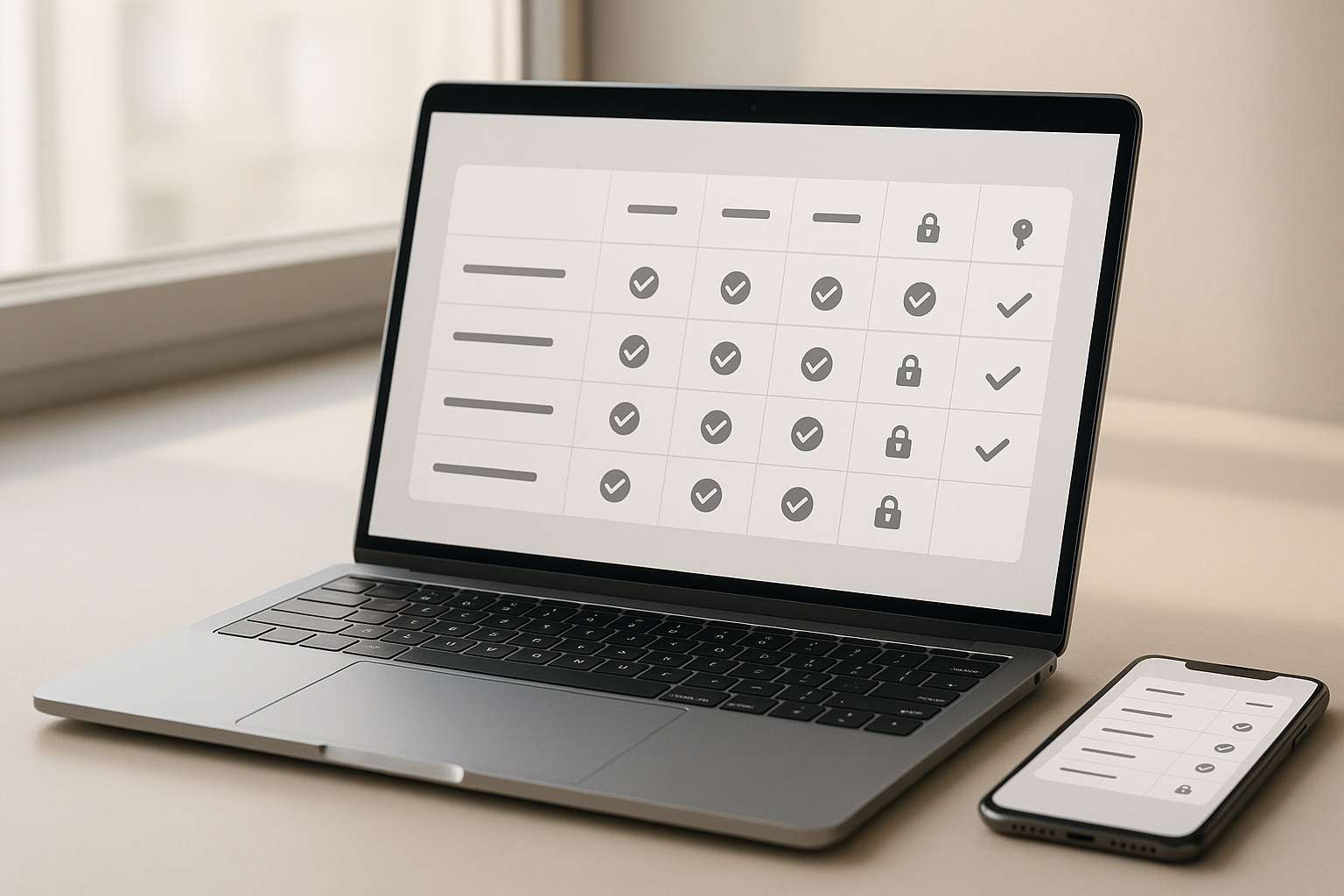
A handy mini-match table
| Use case | Strong fit from this list | Why it helps |
|---|---|---|
| Professional email & office apps | Microsoft 365 or Google Workspace | Custom domain email, docs, meetings |
| Simple, fast website or app hosting | AWS Lightsail | Predictable, pre-configured cloud resources |
| Online and in-store sales | Shopify | Unified catalog, payments, POS |
| Accounting & invoices | QuickBooks Online | Bank feeds, invoicing, reporting |
| Team chat & workflow | Slack | Channels, automations, integrations |
| File sharing & eSign | Dropbox Business | Team folders, permissions, PDF tools |
| Security, speed, uptime | Cloudflare | CDN, DDoS protection, DNS, WAF |
| Automate busywork between apps | Zapier | Triggers, actions, AI workflows |
| Reliable backups | Backblaze | Continuous, centralized protection |
Below are the 10 tools and services—each section explains where it fits, how to roll it out, common pitfalls, and concrete guardrails so you can move with confidence.
1. Microsoft 365 (Email, Office Apps, Teams)
Microsoft 365 gives you professional email on your domain, familiar Office apps, 1 TB-class cloud storage per user, and secure collaboration via Teams—all wrapped in centralized admin controls. For most small businesses, it’s the fastest route to dependable communication, document management, and video meetings without building any IT plumbing yourself. Because it’s cloud-hosted, you get automatic updates and can work from any device; because it’s an integrated suite, you avoid the “is this the latest file?” confusion that drags teams down. Identity and device management are built in, so you can lock down access when staff leave and enforce basics like multi-factor authentication from day one. If you need domain-branded email, spreadsheets that never corrupt, and meetings that just work, this should be on your shortlist.
How to roll it out
- Start with a single business plan that includes email, Office apps, OneDrive, and Teams.
- Migrate mailboxes and files in batches; redirect old email to avoid missed messages.
- Turn on basic security: MFA, conditional access, standard sharing limits.
- Set up Teams channels that mirror how work actually happens (customers, projects, operations).
- Standardize file storage in OneDrive (personal) and SharePoint (team) to end “version sprawl.”
Numbers & guardrails
- Adoption target: within 30 days, >80% of staff sign in daily; within 60 days, >70% of active files live in OneDrive/SharePoint.
- Time win: if 15 people each save 10 minutes/day from easier file access and fewer email attachments, you reclaim 12.5 hours/week—about 1/3 of a full-time day.
Close-out: Choose Microsoft 365 if your team prefers Outlook/Excel and wants tight Windows integration plus strong admin controls in one place. Microsoft
2. Google Workspace (Gmail, Docs, Drive, Meet)
Google Workspace is a lean, cloud-first productivity suite built around Gmail, Drive, Meet, and collaborative Docs/Sheets/Slides. It shines for real-time co-editing and lightweight administration, especially if your team already lives in a browser. For small businesses that prioritize speed, simple sharing, and document collaboration without desktop installs, Google Workspace keeps work moving while staying manageable for a non-specialist owner or office manager. Custom domain email is straightforward, and integrated admin tools help you set policies, manage devices, and retain data when staff change. If your workflows revolve around shared links rather than rigid folder structures, you’ll feel at home fast.
How to roll it out
- Verify your domain and switch MX records to Gmail; schedule during a low-risk window.
- Create shared drives for departments or projects; adopt clear naming conventions.
- Use Meet for everyday meetings; record recurring customer sessions to shared drives.
- Enable basic data retention (Vault) for email and files; set device policies for laptops/phones.
- Train on in-doc comments, suggestions, and version history to replace long email threads.
Common mistakes
- Mixing personal Google accounts with company accounts (fix by enforcing company logins).
- Letting shared drives sprawl (add a quarterly “archive hour”).
- Over-permissive sharing to “Anyone with link” (default to “Restricted” and grant by group).
Close-out: Choose Google Workspace if real-time collaboration and low-maintenance browser workflows matter more than desktop-first habits. Google Workspace
3. Amazon Web Services (AWS) Lightsail for Simple Hosting
When you need a website or lightweight app hosted reliably without hiring a cloud architect, Amazon Lightsail is a pragmatic entry point. It packages virtual private servers, managed databases, storage, static IPs, and a CDN into sane, predictable bundles, so you can launch a WordPress site, a storefront backend, or a custom API in a few clicks. Because it runs on AWS, you can later graduate to more advanced services without a painful migration. For many small businesses, Lightsail hits the sweet spot: fast to start, easy to understand, and expandable when your traffic or complexity grows.
How to deploy safely
- Use pre-built blueprints (e.g., WordPress or LAMP) to accelerate setup.
- Add a managed database instead of running your own to reduce patching risk.
- Put CloudFront-backed Lightsail CDN in front for faster global loads.
- Enable automated snapshots and test restores before you need them.
- Keep SSH keys safe; rotate if contractors leave.
Numbers & guardrails
- Scale step: start with one instance; add a second when average CPU >50% during business hours.
- Uptime target: set health checks and alerts; aim for >99.9% monthly with a simple active-passive setup.
- Cache goal: with CDN on, you often offload 60–80% of traffic from your origin, reducing bandwidth and improving page speed.
Close-out: Reach for Lightsail when you want AWS reliability without getting lost in hundreds of services; it’s built to de-risk your first deployment and grow later.
4. Cloudflare (Speed, Security, and Uptime)
Cloudflare accelerates your website and shields it from common attacks with a global content delivery network (CDN), DDoS protection, DNS hosting, and a web application firewall you can configure without a security team. For small businesses, it’s the difference between hoping a burst of traffic doesn’t melt your site and knowing cached pages will keep serving quickly even when your origin wobbles. Cloudflare sits in front of your site, absorbing attacks and serving content from data centers near your visitors, while its dashboard simplifies policies like bot mitigation and TLS. It’s a pragmatic safety net for any customer-facing site where reputation and revenue ride on page speed and uptime.
How to implement
- Move DNS to Cloudflare; verify records before switching name servers.
- Turn on the CDN and “Always Online”-style features; enable HTTP/2 and TLS.
- Start with managed WAF rules; add custom rules for admin paths and country blocks if needed.
- Use page rules to cache static assets aggressively; bypass cache for dynamic checkout pages.
- Monitor analytics for cache hit ratio and error spikes; set alerts.
Numbers & guardrails
- Cache hit goal: target >70% for static assets; anything lower suggests mis-configured headers.
- Latency win: expect median TTFB to drop significantly when serving cached content from a nearby edge.
- Risk guard: lock the admin path behind IP access rules or zero-trust access to reduce brute-force attempts.
Close-out: Add Cloudflare to any public site in this list; it compounds gains from Shopify, Lightsail, or Dropbox-hosted assets while reducing downtime risk.
5. Shopify (Sell Online and In-Store)
Shopify gives small businesses a full commerce stack—online storefront, payments, inventory, shipping, and optional retail point-of-sale—without stitching together multiple vendors. If you want to launch quickly, accept payments securely, and manage catalogs across web and store, Shopify’s templates, app marketplace, and POS hardware make it achievable in days, not months. As you grow, you can add features like B2B catalogs, subscriptions, or local pickup while keeping accounting and shipping integrations tidy. For product businesses, it’s the clearest route from idea to first sale to repeat customers. Shopify
How to get value fast
- Start with a clean theme and 5–10 products; expand only after you dial in conversion basics.
- Use well-structured product types, tags, and collections for easier merchandising.
- Turn on integrated payments and set fraud filters; connect your bank account for payouts.
- Add Shopify POS if you sell in person; keep inventory unified across channels.
- Install only essential apps at first (reviews, email capture, shipping); avoid app bloat.
Numbers & guardrails
- Fulfillment guard: if your average order value (AOV) is $45 and you avoid 3 stockouts/week thanks to unified inventory, that’s roughly $135 revenue preserved weekly—and far more in customer goodwill.
- Catalog checkpoint: if you exceed 200 SKUs, commit to a weekly “inventory hygiene” pass to retire duplicates and update images.
Close-out: Pick Shopify if you need a storefront that scales from pop-up to multi-location retail with minimal IT friction and a deep ecosystem of vetted apps. Shopify
6. QuickBooks Online (Accounting, Invoicing, and Cash Flow)
QuickBooks Online centralizes invoicing, expenses, bank feeds, payroll add-ons, and reporting so you can track cash flow without spreadsheet gymnastics. For small businesses, that means faster billing, fewer manual entries, and cleaner books for tax time. The cloud model lets you and your accountant work in the same data, while integrations pull in sales from Shopify, payments from Stripe, or time from your project system. Real-world win: automatic reminders and online payment links reduce late invoices, and recurring invoices protect your time. If you’ve outgrown pen-and-paper or offline accounting, this is the mainstream upgrade.
How to implement cleanly
- Connect business bank and card accounts; categorize a month of transactions to train rules.
- Turn on online invoicing and payment methods; add late-fee policies if appropriate.
- Build a simple chart of accounts; avoid creating one-off accounts for every new vendor.
- Schedule monthly reconciliations; lock closed periods to prevent drift.
- Invite your accountant with appropriate access.
Numbers & guardrails
- Working capital win: reduce days sales outstanding (DSO) by 7 days on $50,000 monthly revenue, and you free roughly $11,667 in cash at any moment.
- Automation threshold: when manual transaction categorization exceeds 30 minutes/day, invest in stronger bank rules and app integrations.
Close-out: Choose QuickBooks Online when you want mainstream accounting that integrates with your sales stack and grows with you without sacrificing oversight. QuickBooks
7. Slack (Team Communication and Workflow)
Slack replaces siloed internal email with channels organized by project, team, or customer, and it connects to hundreds of apps so updates flow where work happens. For small businesses, the benefit is faster decisions and fewer status meetings: questions land in the right channel, files are searchable, and lightweight automations nudge work forward. With huddles for quick voice/video, canvases for context, and an increasingly capable workflow builder, Slack becomes the operating layer that glues your tools together. It’s especially helpful for hybrid or multi-location teams that need a shared rhythm without heavy process.
How to set it up
- Create channels for #customers-<name>, #projects-<name>, and #ops-<topic>; archive finished ones monthly.
- Use naming conventions and channel descriptions so newcomers orient quickly.
- Connect core tools (Calendar, Drive/OneDrive, QuickBooks alerts) and restrict noisy apps.
- Automate routine check-ins (e.g., weekly #ops-metrics form) and use forms to triage requests.
- Establish norms: default to public channels, ask in channel not DM, summarize decisions.
Numbers & guardrails
- Email reduction: cut 20 internal emails/day per person; at 1 minute per email, 10 people save 200 minutes/day—over 16 hours/week.
- Signal-to-noise: if a channel exceeds 100 messages/day without clear outcomes, split it or introduce a template for requests.
Close-out: Adopt Slack if you want fewer meetings, searchable knowledge, and one place to automate the simple yet constant actions that keep work moving. Slack
8. Dropbox Business (File Sharing, eSign, and Admin Controls)
Dropbox Business focuses on secure file storage and sharing with features like team folders, granular permissions, restore/version history, PDF editing, and integrated eSign—useful if your work revolves around large files or contracts. For small teams handling creative assets or client deliverables, Dropbox’s sync engine is fast and reliable, and the admin console makes it straightforward to add users, manage groups, and offboard departing staff. Because Dropbox integrates well with Office and Google editors, you can keep file workflows flexible without locking into one document suite.
How to deploy without chaos
- Create team folders by client or department; assign groups instead of individuals.
- Enable smart sync so laptops don’t run out of space; pin active folders offline.
- Set sharing defaults to team-only; require passwords and expirations for external links.
- Use built-in PDF tools and eSign to shorten approval loops.
- Schedule a quarterly “cleanup” to archive completed projects and reduce clutter.
Numbers & guardrails
- Capacity planning: with 12 staff averaging 200 GB each, plan for 2.4 TB of active data and set retention to a period that balances safety with storage discipline.
- Recovery goal: keep version history long enough to survive multi-week projects; test a full folder restore once per quarter.
Close-out: Choose Dropbox Business if your core work product is files that must move fast between clients and teammates—with permissions and recovery you can trust. dropbox.com
9. Zapier (No-Code Automation Between Your Apps)
Zapier connects the dots between your tools—when something happens in App A, it triggers actions in App B (or C, or D). For a small business, that means leads moving from forms into your CRM, invoices created from accepted proposals, or Slack alerts when a payment clears—all without writing code. Modern Zapier also includes AI-powered steps and ways to build simple internal interfaces, so non-technical teammates can assemble automated workflows that save hours. Start with a narrow, repeatable task and expand as you learn what to trust to automation. Zapier
How to get quick wins
- List top five repetitive tasks (copy-pasting, status updates, handoffs).
- Build one Zap per task with a single trigger and 1–2 actions; add filters to prevent noise.
- Use built-in Formatter to clean data (dates, currency, names).
- Add error handling: send failures to a Slack #ops-alerts channel.
- Document each Zap’s owner and purpose in its description.
Numbers & guardrails
- Time saved: automating a 10-minute task that occurs 20 times/day saves 200 minutes/day—over 16 hours/week for one team.
- Change control: if a Zap touches money or customer records, require a second reviewer before edits.
Close-out: Bring in Zapier when your team spends more time moving data between apps than serving customers; it turns integration from a wish into a weekend project.
10. Backblaze (Business Backup and Off-Site Protection)
Backblaze provides simple, continuous backup across company devices and servers with centralized management and ransomware-resilient restore options. For small businesses, reliable backup is non-negotiable: laptops die, files get deleted, and bad actors strike at the worst time. Backblaze’s approach—automatic, always-on backups with version history and object storage for servers—makes it practical to protect everything without babysitting jobs. Pair it with the classic 3-2-1 strategy (three copies, two media, one off-site) and you’ll sleep better knowing a single mishap won’t halt operations.
How to implement a resilient setup
- Install endpoint backup on every company laptop/desktop; enforce encryption and passwords.
- Back up servers and NAS to object storage with immutability (object lock) enabled.
- Test restores monthly: single file, whole folder, and a bare-metal scenario.
- Keep admin credentials in a password manager; require MFA for console access.
- Document recovery procedures and store them where staff can find them during an incident.
Numbers & guardrails
- 3-2-1 in practice: for 10 laptops with 512 GB each (~5 TB total), keep working copies on devices, a local shared copy, and an off-site cloud copy; verify that at least one copy is immutable.
- Recovery target: design for an RPO (data you can lose) of <1 day and an RTO (time to restore) that meets your promise to customers.
Close-out: Add Backblaze to your stack the same day you deploy your first cloud tool; backup is the quiet hero that makes every other decision reversible. Backblaze
Conclusion
You don’t need a giant IT budget to assemble a modern, resilient tech stack. Start by anchoring communication and documents in a productivity suite (Microsoft 365 or Google Workspace), add a secure home for your website or app (AWS Lightsail), protect the perimeter and performance (Cloudflare), run your storefront and finances on tools built for non-experts (Shopify, QuickBooks Online), and stitch the daily flow together with collaboration, file management, automation, and dependable backups (Slack, Dropbox Business, Zapier, Backblaze). The pattern repeats: pick one tool per job, set sensible defaults, automate what’s predictable, and measure real outcomes like fewer late invoices, faster pages, and fewer internal emails. Do those things, and you’ll buy back time every week while making your business sturdier. Next step: pick two categories from the list you haven’t modernized yet and pilot them with one team for two weeks; standardize if the metrics move.
FAQs
1) What’s the simplest way to decide between Microsoft 365 and Google Workspace?
If your team lives in Outlook/Excel and wants deep Windows integration, Microsoft 365 will feel natural. If your team prefers the browser and real-time co-editing, Google Workspace is wonderfully simple. Draft one “day in the life” scenario (email, meeting, document, share) and run it in both suites; pick the one that requires fewer clicks and fewer workaround habits for your staff.
2) How do I host a professional website without hiring a developer?
Use AWS Lightsail to deploy a pre-configured WordPress instance and wrap it with Cloudflare for speed and security. Lightsail simplifies servers, databases, and snapshots, while Cloudflare takes care of DNS, CDN, and basic attack protection. Add a managed backup (Backblaze for files and image assets) and you’ve covered the essentials from launch day.
3) We sell online and in a physical shop—can one system handle both?
Yes. Shopify unifies online and in-person sales with integrated POS hardware, payments, and a single inventory. That means one product catalog, consistent pricing, and fewer stockouts. Start with a small set of products, connect your payment account, and let Shopify manage tax and shipping calculations while you focus on merchandising and service.
4) How does Zapier avoid creating a mess of automations I can’t control?
Treat each Zap like a micro-process: name it clearly, document its owner, and add filters to prevent bad data from moving. Route failures to a visible Slack channel so you can triage promptly. Review critical Zaps quarterly, especially those touching money or customer records, and require a second reviewer before changes.
5) Do I still need Dropbox if I’m already using Microsoft 365 or Google Workspace?
Not always, but Dropbox excels with large creative files, external sharing, and eSign workflows; many studios and agencies prefer its sync performance and admin controls. If your work is document-centric inside a suite, stick to OneDrive or Drive; if your deliverables are heavy files for clients, Dropbox can reduce friction and re-work. dropbox.com
6) What’s the minimum viable security setup for a small business stack?
Turn on MFA everywhere, move DNS behind Cloudflare, keep software auto-updated, restrict file sharing to named users, and back up endpoints plus servers with immutable off-site copies. These measures stop common attacks and make recovery realistic without a dedicated security team.
7) How do I know if my website is “fast enough” for customers?
After adding Cloudflare, measure time to first byte (TTFB) and Largest Contentful Paint (LCP) with your analytics tool. For a small business site, target consistent sub-second TTFB on cached pages and a clean page structure that loads key content early. If cache hit ratio is low, review headers and page rules. Cloudflare
8) What backup schedule should I aim for without overcomplicating things?
Adopt the 3-2-1 rule: three copies, two media, one off-site. In practice, that’s your working files, a local shared copy, and a cloud backup like Backblaze. Test restores monthly and document who’s responsible for green-lighting a broader recovery if an incident occurs. Backblaze
9) Can Slack really reduce meetings?
Yes—if you set norms. Move status updates to a weekly channel post with a short template; use huddles for under-10-minute decisions; and reserve meetings for topics that truly need live discussion. Integrations bring updates into channels so fewer meetings are needed just to “sync.”
10) What if my team is not “technical”—will we be able to run all this?
These tools are designed for non-specialists. Start with one per category, keep settings simple, and lean on official guides and partner marketplaces. As you grow, you can layer more advanced controls without rebuilding everything, because the cloud model is designed for gradual, safe expansion.
References
- “Business Collaboration and Team Solutions | Microsoft 365,” Microsoft — Microsoft
- “What is Microsoft 365 for business?” Microsoft Learn — https://learn.microsoft.com/en-us/microsoft-365/admin/admin-overview/what-is-microsoft-365-for-business Microsoft Learn
- “What is Google Workspace?” Google — Google Workspace
- “Benefits of Business Apps for Mobile and Web,” Google Workspace — Google Workspace
- “What is Amazon Lightsail?” AWS Docs — AWS Documentation
- “Amazon Lightsail Features,” AWS — Amazon Web Services, Inc.
- “Cloudflare for Small & Medium-Sized Businesses,” Cloudflare — Cloudflare
- “Overview,” Shopify Help Center — Shopify Help Center
- “QuickBooks Online — How it works,” Intuit — QuickBooks
- “Slack Features,” Slack — Slack
- “What is Dropbox Business?” Dropbox Help — help.dropbox.com
- “How Zapier Works,” Zapier Docs — docs.zapier.com
- “Backblaze Business Backup,” Backblaze — Backblaze
- “The NIST Definition of Cloud Computing (SP 800-145),” NIST CSRC — NIST Computer Security Resource Center