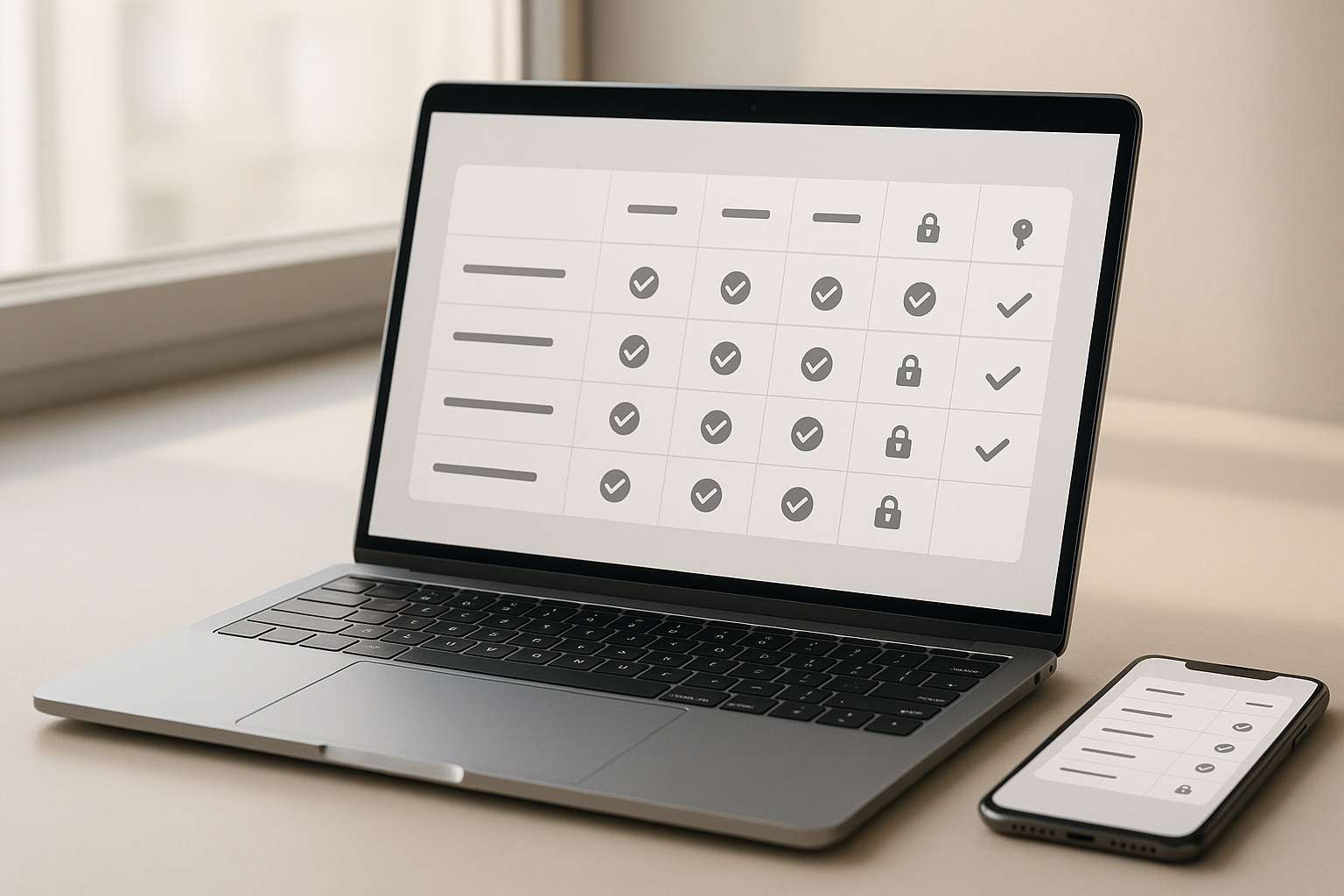
Choosing a password manager should be simple: you want something safe, easy to use, and flexible enough to fit your devices and workflows. This guide compares the Top 5 password managers you’re most likely considering—LastPass, 1Password, KeePass, Bitwarden, and Dashlane—so you can pick confidently without wading through jargon. In short, there isn’t a one-size-fits-all winner; there’s a best fit for your needs. For individuals and families who value polish and powerful sharing, 1Password is a standout. If open source and cost control matter most, Bitwarden is excellent. For maximum local control with no cloud by default, KeePass is hard to beat. Dashlane leans into streamlined, guided use. LastPass offers familiar workflows and broad business administration.
Security note: This article is educational, not individualized security advice. For business-critical or regulated environments, consult a qualified security professional.
What is a password manager? It’s a vault that stores and auto-fills your logins, generates strong passwords, and increasingly handles passkeys—cryptographic credentials that let you sign in with biometrics or a PIN instead of a password. A good manager encrypts your vault so only you can decrypt it, ideally under a zero-knowledge model (the provider never has your keys).
Fast path to a decision (skim this first):
- Identify your must-haves: passkeys, family sharing, business controls, or offline-only use.
- List your devices and browsers; confirm native apps and extensions exist for each.
- Decide where your vault lives: provider cloud, self-hosted, or local-only.
- Check import/export for moving data from your current tool.
- Turn on strong authentication (biometrics, multi-factor) and a robust master password.
- Run a vault health check (weak/duplicate passwords, breached entries) and fix issues.
Below is a compact comparison to orient you before we dive deep. “Cloud sync” means built-in synchronization by the provider; “offline/local-only” means you can keep the vault on your device without sending data to a provider. “Open source” indicates whether core code is publicly available. “Passkeys” refers to creating, storing, and syncing passkeys alongside passwords.
| Manager | Open source | Cloud sync | Offline/local-only | Passkeys | Family sharing | Business SSO/admin |
|---|---|---|---|---|---|---|
| Bitwarden | Yes | Yes | Possible (incl. self-host) | Yes | Yes | Yes |
| 1Password | No | Yes | Limited (read-only/exports; cloud by design) | Yes | Yes | Yes |
| LastPass | No | Yes | Limited (exports; cloud by design) | Yes | Yes | Yes |
| KeePass | Yes | No (use your own sync) | Yes | Emerging via plugins/forks | Via database sharing | Community/IT-driven |
| Dashlane | No | Yes | Limited (exports; cloud by design) | Yes | Yes | Yes |
Prices, plan names, and specific feature tiers vary; focus on fit and security model first, then choose the plan that matches your headcount and features.
1. Bitwarden: Open-source flexibility and value without giving up features
Bitwarden offers a compelling balance of strong security, cross-platform support, and affordability, wrapped in an open-source model that encourages third-party scrutiny and community trust. For individuals, it covers the essentials—secure vault, password generator, browser autofill, and passkey support—without bloat. For teams, it adds organization vaults, role-based access, and directory integrations. You can use Bitwarden’s hosted cloud, self-host it for more control, or mix approaches. If you’re migrating from a browser-built-in manager or another tool, Bitwarden’s importers handle common formats, and its export options keep your exit door unlocked if you ever switch later. The interface is clean, the mobile apps are reliable, and the browser extensions feel familiar quickly. In short, Bitwarden is a pragmatic choice if you want transparency, flexibility, and cost control in equal measure.
Why it matters
- Open source means the design and implementation are inspectable, which helps align incentives toward sound security practices.
- Multiple deployment models (hosted, self-hosted) let you control data residency and architecture decisions.
- Solid team features support shared vaults and granular permissions without overwhelming setup.
How to do it
- Set a strong master password and enable biometric unlock on mobile.
- Turn on multi-factor authentication (MFA) for your Bitwarden account (authenticator app or hardware key).
- If you need full control, self-host and place the server behind modern TLS, monitoring, and backups.
- Use the vault health tools to find weak, reused, and old passwords, then rotate them.
- Store recovery codes and the Bitwarden emergency access setup securely but accessibly.
Numbers & guardrails
- If you’re consolidating ~150 accounts, expect initial cleanup (duplicates, weak entries) to take about 1–2 hours with the health report guiding you; rotating the weakest 20 logins at ~3 minutes each is another ~1 hour—a weekend-friendly task.
- For a small team of 10 people sharing 60 credentials, a single organization with collections by function (Finance, Ops, Marketing) usually keeps permissions simple and auditable.
Common mistakes
- Treating export files casually. Unencrypted exports are powerful but risky; delete them after use.
- Overusing browser-built-in storage alongside Bitwarden, causing confusing duplicates and stale entries.
- Skipping emergency access setup for a trusted contact.
Bottom line: If you value transparency, optional self-hosting, and strong day-to-day usability at a friendly price, Bitwarden is an easy recommendation that scales from solo use to small business without drama.
2. 1Password: Slick experience, Secret Key design, and polished sharing
1Password focuses on a seamless experience backed by a distinctive Secret Key design. Alongside your master password, a long, random Secret Key is generated on your devices and never sent to the server in usable form. That extra secret hardens the vault against offline attacks, and 1Password’s architecture is designed so that the company can’t read your data. The apps are consistently polished across platforms, the Watchtower dashboard highlights risks you can fix quickly, and family and team features are best-in-class for many users. If you want powerful sharing, easy recovery options (especially for family or business accounts), and passkey support woven into the same workflow as passwords, 1Password delivers a refined blend of security and everyday convenience.
Why it matters
- The Secret Key raises the bar against brute-force attempts by adding a device-bound factor to your vault’s encryption.
- The Watchtower panel surfaces weak, reused, or exposed logins and guides you to fix them, improving hygiene.
- Travel Mode (selectively hide vaults on a device) is helpful for crossing borders or reducing exposure when you lend a device.
How to do it
- Save the Emergency Kit securely (printed or in a separate secure location) so lockout risk stays low.
- Enable biometrics where available so you get strong security with minimal daily friction.
- Organize with vaults (e.g., Personal, Family, Work) and grant sharing per vault; avoid ad-hoc sharing of single items unless necessary.
- Add tags for workflows (e.g., “rotate-quarterly”, “shared-marketing”) to make reviews faster.
Mini case: a family rollout in an afternoon
- Two adults and two teens move ~220 logins from a browser and an old spreadsheet.
- Import takes ~15 minutes; Watchtower flags ~45 weak or duplicate passwords.
- Each family member spends ~30 minutes rotating the weak set, and shared streaming/household logins go in a Family vault with read-only access for teens.
- Net result: in a single afternoon, the family reduces risk and gains a clean, shared system.
Region-specific notes
- If you operate in regulated sectors, check data handling statements and admin features that map to your compliance needs (e.g., audit logs, role separation).
- If your company mandates certain identity providers, test SSO and provisioning flows with a pilot group before a full rollout.
Bottom line: If you want a refined, cross-device experience with thoughtful safety nets and best-in-class family and team sharing, 1Password is a top pick that makes secure habits feel natural.
3. LastPass: Familiar workflows and broad admin controls
LastPass offers a well-known blend of vault management, auto-fill, sharing, and business administration under a zero-knowledge model where encryption occurs before your data leaves your device. For many users, the draw is familiarity and a broad ecosystem of extensions and mobile apps. The management console for teams and enterprises is straightforward, letting admins set policies, manage groups, and review activity. For individuals and families, LastPass is easy to set up, supports passkeys, and provides standard quality-of-life features like password strength reports and secure notes. If you’re already accustomed to its interface or your company has established procedures around it, staying within the ecosystem can be efficient.
Why it matters
- Zero-knowledge encryption means the provider shouldn’t be able to read vault contents, keeping the focus on your master password and local device security.
- Policy-driven admin controls help businesses bring consistency (e.g., required MFA, sharing rules) without elaborate tooling.
- A mature sharing model makes it easy to give colleagues or family the right access with minimal micro-management.
How to do it
- Set strong master password hygiene and require MFA for all members.
- Use Shared Folders to group credentials by function (Engineering, Finance, Customer Support) and apply least-privilege sharing.
- Monitor the Security Dashboard and address weak or reused logins first, then rotate the rest on a predictable cadence.
- Document an offboarding sequence (suspend user, transfer ownership of shared credentials, revoke access).
Numbers & guardrails
- For a team of 25, expect a tidy rollout to take 1–2 days with staged onboarding: create groups, set 3–5 key policies, and pilot with 5 users before adding the rest.
- A quarterly hygiene pass rotating ~10–15 sensitive credentials (e.g., banking, admin portals) keeps the highest-impact items fresh.
Common mistakes
- Letting shared folders sprawl. Periodically merge or archive stale collections.
- Assuming browser-stored passwords are cleared automatically after import. Clean up duplicates to avoid confusion.
- Skipping clear recovery procedures; be explicit about emergency access or account recovery for designated admins.
Bottom line: If you value familiarity, straightforward sharing, and admin controls that don’t require heavy lifting, LastPass can fit well—just maintain disciplined policies and periodic cleanups to keep risk in check.
4. KeePass: Maximum local control and extensibility
KeePass is a powerful, open-source, local-first password safe that stores everything in an encrypted database file you control. It doesn’t sync by default; you choose how and whether to sync (e.g., a private cloud drive, a local NAS, or not at all). The design appeals to people who want no dependence on a provider and prefer to keep credentials fully offline or to craft a custom setup using plugins. KeePass supports strong cryptography, and the database contains not just passwords but all entry metadata, encrypted. Because it’s open source with a long history, it has a vibrant ecosystem of plugins and ports; that flexibility is a strength, though it requires discernment when selecting extensions or mobile clients. If you’re comfortable with a bit more hands-on configuration, KeePass offers control that hosted managers can’t match.
Why it matters
- Local-only by default means you can operate fully offline, which reduces certain classes of risk and can satisfy strict policies.
- Strong encryption for the entire database, not just password fields, protects usernames, notes, and attachments.
- Ecosystem: plugins for auto-type, browser integration, and specialized workflows let you build exactly what you need.
How to do it
- Start with a fresh database, set a robust master password, and consider a key file stored on a separate device for two-part protection.
- Decide on sync (or no sync). If syncing, use an encrypted channel you control and verify conflict handling (who wins when two devices change the same entry).
- Install only well-maintained plugins; review code provenance and recent activity.
- Enable auto-type for apps and sites that don’t play nicely with extensions.
- Create a read-only copy of the database for sharing low-risk credentials with family or teammates.
Mini case: offline first, selective sync
- A consultant keeps a main KeePass database on a laptop and a copy on a hardware-encrypted USB drive.
- Sensitive client credentials live only on the laptop; personal logins sync via a private cloud folder to a phone client.
- A monthly routine: verify the USB backup, prune expired entries, and rotate 10 high-value passwords.
- Result: maximum control with a narrow, deliberate sync surface.
Common mistakes
- Installing too many plugins without vetting; each adds potential risk and maintenance.
- Syncing the database across services without understanding conflict resolution, leading to lost changes.
- Forgetting to back up; a single corrupted file without a backup is a bad day.
Bottom line: If you want the tightest grip on your data and you’re willing to manage your own sync and backups, KeePass is a flexible, durable choice that rewards careful setup.
5. Dashlane: Guided UX and helpful guardrails
Dashlane emphasizes a clean, guided experience that steers you toward safer habits. It uses a zero-knowledge design where your data is encrypted locally and synced across your devices, and it folds in quality-of-life features like password health insights and straightforward sharing. If you like a tool that nudges you to fix risky items and makes passkeys feel as easy as passwords, Dashlane shines. For businesses, the admin side is approachable with policy controls and reporting that give leaders visibility without demanding a dedicated security engineer. The overall feel is opinionated in a good way: you get smart defaults, curated recommendations, and an interface that reduces second-guessing.
Why it matters
- Nudges and health scoring translate security advice into clear to-dos you can complete in short sessions.
- Passkey management sits alongside passwords so you can move gradually toward passwordless logins where supported.
- Admin clarity helps small teams enforce basics—MFA, sharing rules, and standard onboarding—without heavy configuration.
How to do it
- Start with a vault health check; prioritize fixes by sensitivity (finance, email, domain registrars first).
- Turn on biometrics and, if offered, emergency access for trusted contacts.
- Use shared spaces for team credentials and set clear ownership so someone is responsible for upkeep.
- Schedule a monthly 30-minute maintenance block: rotate flagged items, archive stale entries, and verify backups.
Numbers & guardrails
- Expect the first cleanup pass to trim ~20–30% of duplicates and weak entries if you’re coming from a browser or notes app.
- For a 12-person startup, a single team space with 3–4 groups usually covers day one; add role-based controls as you grow.
- Keep recovery options configured; a preventable lockout can waste hours of support time.
Common mistakes
- Ignoring sharing hygiene; avoid personal vault items in shared spaces and label ownership clearly.
- Postponing passkey adoption in services that support it; early wins build momentum.
- Treating the health score as vanity—use it to drive real rotations and cleanup.
Bottom line: If you want a guide-on-rails experience that steadily improves your security posture without extra fuss, Dashlane is a strong contender for individuals and small teams.
Conclusion
A great password manager should make the secure path the easy path. If you prize transparency and optional self-hosting, Bitwarden is hard to beat. If you want the smoothest family and team sharing with thoughtful design extras, 1Password sets a high bar. If familiarity and broad admin features matter, LastPass can fit, provided you keep disciplined policies. If you demand offline-first control or want to craft a custom setup, KeePass rewards the hands-on approach. If you prefer an opinionated, guided workflow, Dashlane pushes you toward better habits every week.
Your next steps are simple: pick the model you trust (provider cloud, self-hosted, or local-only), enable robust authentication, import your logins, and schedule a monthly health check. Do that, and you’ll spend less time chasing resets and more time getting work done. Ready to lock down your digital life? Choose your manager, turn on MFA, and clean your vault today.
FAQs
Which password manager is “most secure”?
Security isn’t a single switch; it’s a combination of design (zero-knowledge encryption, strong cryptography), operational practices, and your own habits. Each manager here can be very secure when used correctly. Choose based on your threat model: if you need maximum local control, KeePass stands out; if you want strong design with a polished experience, 1Password and Dashlane are excellent; if you value open source and flexibility, Bitwarden is compelling. Whatever you choose, use a strong master password and multi-factor authentication.
What are passkeys, and how do they relate to password managers?
Passkeys replace passwords with cryptographic credentials tied to your devices and protected by biometrics or a PIN. They prevent phishing and reuse because there’s no shared secret to steal. Modern password managers can create and sync passkeys alongside passwords, letting you adopt passwordless logins as more sites support them. You’ll still keep a manager for older sites and for storing secure notes, IDs, and payment data.
Is local-only (KeePass) safer than cloud-synced managers?
Local-only avoids provider cloud risks and can be ideal for high-sensitivity setups, but it shifts responsibility for sync, backups, and physical device security to you. Cloud-synced managers reduce operational burden and add conveniences like account recovery and sharing. Choose based on your comfort with managing storage and backups versus relying on a provider’s infrastructure and recovery options.
Can I switch managers without losing data?
Yes. Most managers support CSV or encrypted export and have importers for common formats. Plan the switch: export, import, verify every critical login, then securely delete the export file. Expect to spend an hour or two cleaning up duplicates and rotating a handful of sensitive credentials during the move.
Do I still need multi-factor authentication if I use a password manager?
Absolutely. Your vault’s master password is a high-value target. Add MFA (ideally a hardware security key or an authenticator app) to your password manager account and to critical services like email, banking, and domain registrars. MFA blocks many account-takeover attempts even if a password leaks.
What master password should I use?
Choose a long, memorable passphrase you can type comfortably. Length matters more than exotic characters. Aim for a phrase that would be hard to guess but easy for you to remember, and do not reuse it anywhere else. Consider enabling a secondary factor such as a biometric or hardware key where supported.
How do families or small teams organize shared credentials safely?
Create separate vaults/spaces per area (Household, Finance, Kids, Work) and share at the vault level, not per item. Assign ownership so someone is responsible for maintenance. Keep personal items out of shared spaces and use read-only access when possible. Review membership quarterly, especially after role changes.
What happens if I forget my master password?
Depending on the tool, recovery options vary: emergency access for a trusted contact, family- or admin-assisted recovery, or, for local-only systems like KeePass, no recovery at all. Set up recovery while you still have access: emergency kits, secondary factors, and documented procedures. Store those materials securely but accessibly.
Are browser-built-in managers enough?
They’re better than reusing weak passwords, but dedicated managers offer stronger cross-platform sharing, vault health reports, robust export/import, and better controls for families and teams. Dedicated tools also centralize passkeys and passwords in one place, reducing fragmentation when you use multiple browsers or devices.
How often should I rotate passwords?
Rotate when risk dictates: after a breach notification, for critical accounts, and for any weak or reused passwords. Avoid arbitrary frequent rotations that cause fatigue; focus on improving unique, strong entries and enabling MFA. Quarterly reviews targeting your most sensitive accounts strike a good balance for many people and small teams.
Can I store more than passwords (e.g., recovery codes, secure notes)?
Yes. Store recovery codes, software licenses, ID documents, and private keys where appropriate. Tag sensitive items and consider extra safeguards (e.g., segregated vaults, read-only shares, or keeping certain secrets in an offline KeePass database if they don’t need to sync).
What’s the best way to start with passkeys?
Begin with a few services you use daily that already support passkeys (email, a major cloud platform, or your developer tools). Create and store passkeys in your manager, keep passwords as backup where required, and add new passkeys gradually as more sites support them. Over time, you’ll rely less on passwords and more on phishing-resistant authentication.
References
- 1Password Security Design (White Paper) — 1Password — https://1password.com/files/1password-white-paper.pdf
- 1Password: Security Principles and Features — 1Password — https://1password.com/security
- Bitwarden Security Whitepaper — Bitwarden — https://bitwarden.com/help/bitwarden-security-white-paper/
- Understanding Bitwarden Architecture — Bitwarden — https://bitwarden.com/blog/understanding-bitwarden-architecture/
- Zero-Knowledge Encryption & Security Model — LastPass — https://www.lastpass.com/security/zero-knowledge-security
- How Zero Knowledge Keeps Passwords Safe — LastPass — https://blog.lastpass.com/posts/how-zero-knowledge-keeps-passwords-safe
- KeePass: Features — KeePass — https://keepass.info/features.html
- KeePass: Security — KeePass — https://keepass.info/help/base/security.html
- Dashlane: Security Principles & Architecture (White Paper) — Dashlane — https://www.dashlane.com/download/whitepaper-en.pdf
- Dashlane: Zero-Knowledge Security — Dashlane — https://www.dashlane.com/resources/dashlane-zero-knowledge-security
- FIDO Alliance: Passkeys — FIDO Alliance — https://fidoalliance.org/passkeys/
- NIST Digital Identity Guidelines (SP 800-63B) — NIST — https://pages.nist.gov/800-63-3/sp800-63b.html