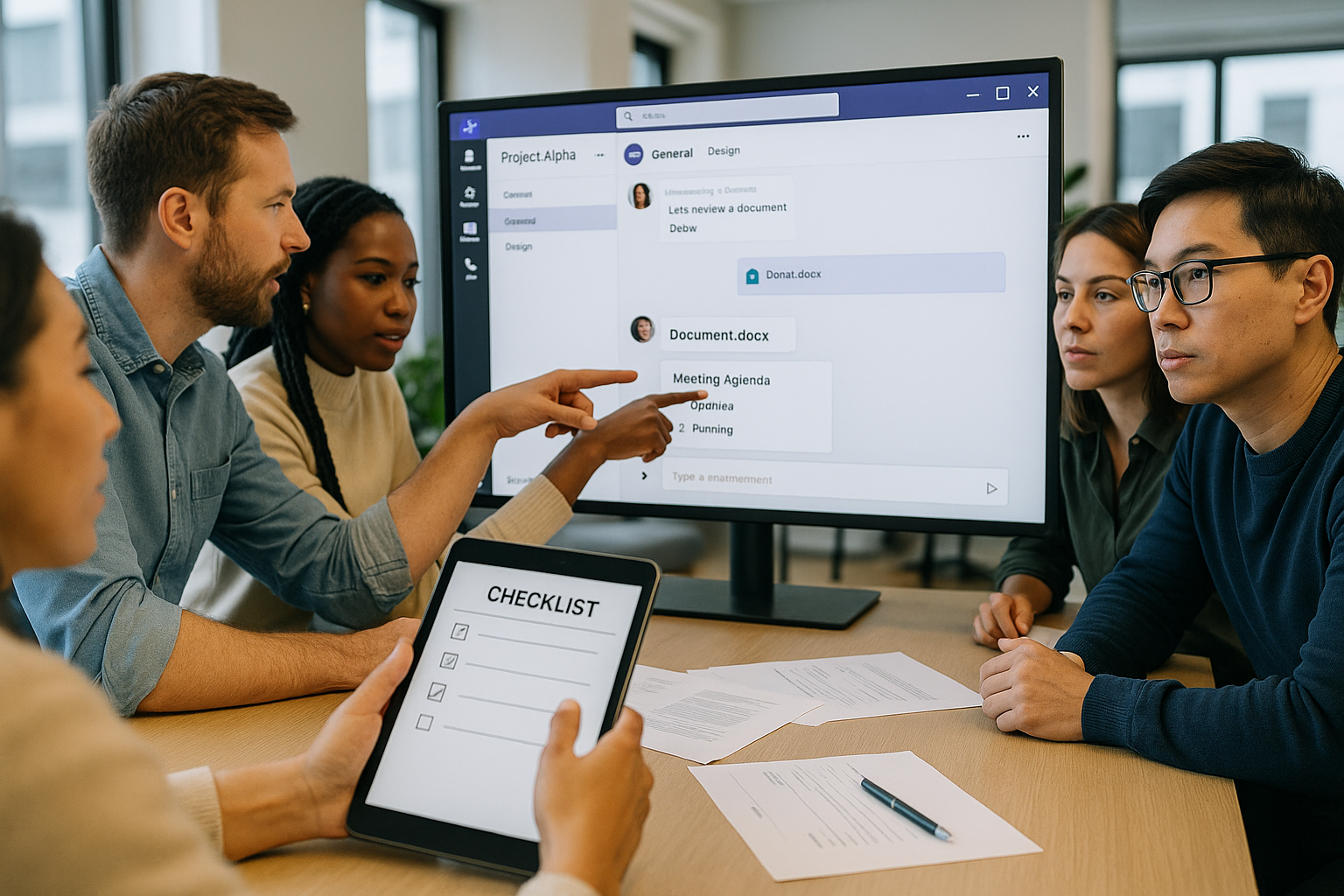
Microsoft Teams collaboration and chat bring your people, files, and conversations into a single workspace so you can ship work faster with less thrash. This tutorial gives you the essential system for using Teams like a pro—without getting buried in pings. In one sentence: Microsoft Teams is a hub where you organize work by teams and channels, have focused chats, share and co-author files, and run meetings with context. Follow the steps below to set up structure, reduce noise, and create dependable routines that teammates actually follow.
Fast path—your 10 steps:
1) Map your Teams and channels, 2) Use chat intentionally, 3) Post in channels the smart way, 4) Share and co-author files, 5) Run effective meetings, 6) Calibrate notifications, 7) Use @mentions, tags, and presence, 8) Add apps, bots, and simple workflows, 9) Govern access and protect data, 10) Speed up with search, pins, and shortcuts.
You’ll come away with concrete guardrails, checklists, and practical examples you can apply immediately to make collaboration calmer, faster, and more reliable.
1. Design Teams and channels like a project map
Start by shaping where work happens. Teams are the containers for people and permissions; channels are the dedicated spaces for topics, projects, or functions. A clear structure reduces context switching, makes search predictable, and keeps conversations attached to the files and meetings they belong to. Think “one team per real-world group you manage” (department, product, client) and “one channel per long-running topic” (planning, delivery, support, announcements). Use standard channels for open collaboration, private channels for sensitive sub-work within a team, and shared channels to work with another team (or partner org) without creating a separate team. Decide naming conventions up front and document when to create a new channel versus moving a thread to an existing one; this avoids channel sprawl and saves everyone time later.
How to do it
- Define a naming pattern: area-topic (e.g., ops-incidents, marketing-campaigns).
- Create a pinned About post in each channel: purpose, “what belongs here,” and links to templates.
- Add tabs per channel (Planner/Tasks, OneNote, a key dashboard).
- Reserve a channel for Announcements (moderated) to broadcast decisions and changes.
- Create shared channels for partner teams you collaborate with often; avoid duplicate teams.
Numbers & guardrails
- A team can host up to 1,000 channels in total (mix of standard and shared); up to 30 of those can be private channels. A single team can include tens of thousands of members—the platform is designed for large internal communities. These limits help you plan whether to split work into multiple teams or consolidate.
Mini-checklist
- Purpose written at the top of each channel
- Tabs added for the top 2–3 tools per channel
- Moderation turned on for announcements
- Naming and “what goes where” guide posted and pinned
Close the loop by socializing your structure in a short kickoff message and pinning it—if people know the map, they’ll actually use it.
2. Use chat intentionally (and stop it from becoming email 2.0)
Chat is for quick decisions, clarifications, and rapid swarming—not for decisions that need to be discovered later. Treat 1:1 and small group chat as your “walkie-talkie,” then move anything with ongoing value into a channel post so others can find it. Use message formatting for clarity (headings, bullets, code, quotes), and keep one topic per message so replies stay tidy. Pin critical chats (your manager, on-call group, key partners) and archive or mute the rest. Create a chat with yourself as a scratchpad or to park links you’ll need later. When chat turns into a decision with a document, jump to the relevant channel and post it there with the file attached so it’s searchable and visible to the right audience.
How to do it
- Start with a short subject line in the Format composer for longer chats.
- Use @mention sparingly—name only the people who truly need to act.
- Prefer replies over starting new messages for the same topic to keep context together.
- Pin 5–7 priority chats; unpin aggressively to keep focus.
- Move decisions to a channel post with a summary and the source file.
Numbers & guardrails
- Private group chats support up to 250 people; once a chat grows beyond 20, certain niceties (typing indicators, some status features) are reduced to keep performance snappy.
- Files sent in chat are stored in OneDrive and typically cap at about 100 MB per attachment; larger items should be shared by link from OneDrive or a channel Files tab.
- Audio/video calls started from chat are best for small groups (≈20); above that, schedule a meeting for a better experience.
Common mistakes
- Piling unrelated topics in a single long chat; instead, split messages by topic.
- “FYI” blasting an entire group with no ask; instead, state the decision and the one action you need.
- Keeping decisions in ephemeral chats; instead, post a recap in the right channel.
Wrap up each chat thread with “Decision:” and “Owner:” so you don’t need to scroll back later.
3. Post in channels the smart way (so threads stay findable)
Channels are where work becomes institutional memory. The goal is to start one focused conversation per topic, keep all replies in that thread, and attach the file or meeting so the full story stays together. Use Announcements for high-signal posts with a headline and background color; use standard posts for everything else. Cross-post only when multiple teams truly need the same update; otherwise, link to the original post to avoid divergent discussions. Format your first paragraph like a mini-brief: context, the decision or proposal, and exactly what you need reviewers to do. Add subject lines to long posts so search results make sense, and add tags (the feature) if you must notify a specific role across a team.
How to do it
- Click New conversation > Format; write a one-paragraph brief with a subject.
- Attach the file from the team’s Files tab so permissions are right and versions stay in one place.
- When you need focused attention, @mention a tag (e.g., @Designers) instead of pinging everyone.
- For recurring posts (e.g., weekly status), reuse a short template in your message.
Common mistakes
- Starting a new conversation when you meant to Reply—this splits the context.
- Cross-posting routine updates; link instead to a single source of truth thread.
- Attaching local copies of files; always link or attach from the channel Files tab.
Close your thread with a short “Resolved” comment and mark it with a check emoji so people skimming the channel know the outcome.
4. Share and co-author files with confidence
Teams and SharePoint are a single system: files in channels live in SharePoint under that team; files in chat live in OneDrive for the sender and are shared to recipients automatically. That design gives you version history, real-time co-authoring in Office apps, and consistent permissions. The rule of thumb: share by link from the right home (channel or OneDrive), avoid uploading duplicates, name files clearly (YYYY-MM-DD-Topic or Client-Project-Artifact-v#), and lock down sensitive folders with channel type (private/shared) or a sensitivity label when needed. Use the channel’s Files tab to add shortcuts to key folders and surface a document library as a tab for quick access.
How to do it
- In a channel, use Attach > Browse Teams and Channels to link files from the channel’s library.
- In chat, attach from OneDrive; if it really belongs to the broader team, move it into the channel library first.
- Use Check-in/Check-out or Require check-out for controlled edits on critical templates.
- Turn on versioning and keep a short CHANGELOG section at the top of living docs.
Numbers & guardrails
- Channel attachments live in SharePoint with generous limits and full versioning; chat attachments are typically capped around 100 MB per item and are stored in OneDrive for the sender.
- Meeting recordings store to OneDrive (private meeting) or SharePoint (channel meeting).
- A team can support up to 1,000 channels, and private channels are capped (use them sparingly for sensitive sub-work).
Mini case
A product team kept specs in chat, leading to five conflicting versions. They moved specs to a design-specs channel, posted one Spec Template as a tab, and attached new specs from that library. Result: one link per spec, clean version history, and comments tied to the document thread. The extra click to attach “from Teams and Channels” paid off every day after.
End each file-related post with where the canonical copy lives and who owns updates—future you will thank you.
5. Run effective meetings with context (before, during, after)
The best meetings start and end in Teams, not email. Schedule from the Teams calendar so the invite is tied to the right chat or channel. Add an agenda in the invite body (bulleted, owners, timeboxes). Use meeting options to define who can present, lobby behavior, and recording. During the meeting, share specific windows instead of your entire desktop when possible, use participant reactions sparingly to signal consensus, and capture decisions as you go in the meeting notes or a shared doc. After the meeting, post a two-minute recap in the channel (decisions, owners, due dates) and link the recording and files in one message so people who missed it can catch up fast.
How to do it
- Schedule from the relevant channel so chat, files, and recording attach to the right place.
- Set Meeting options: who can present, lobby, allow mic/camera for attendees.
- Use Raise hand queues for Q&A; assign someone to triage questions in chat.
- Record when the content is worth rewatching; post a summary as the top reply in the channel thread.
Numbers & guardrails
- Interactive meetings scale into the hundreds; beyond a point, attendees automatically join a view-only experience.
- Breakout rooms are available only below a certain attendee threshold; if you expect a very large audience, plan alternatives for workshops or split sessions.
- Recordings save to OneDrive or SharePoint depending on the meeting type; permissions follow the invite list unless you change them.
Common pitfalls
- Inviting an entire team when a tag would reach only the needed roles.
- Scheduling from Outlook when the work lives in a channel—recordings and notes end up detached.
- No agenda; the meeting becomes a status read-out. Keep the agenda short and outcome-oriented.
Close with a recap reply that starts “In this meeting we decided…” so future readers can see the outcome at a glance.
6. Calibrate notifications so you see the signal (not the noise)
You won’t “master Teams” until you master notifications. Decide where you want to be interrupted (desktop, mobile, email—if at all) and for which events (DMs, mentions, replies, reactions, meetings). Tweak per-channel notifications (All activity vs. Mentions & replies vs. Off) and prune the channels you follow. In your Activity feed, filter for @mentions or unread items to triage quickly. On mobile, set Quiet time/Quiet hours so work stops after your day ends, and use Do Not Disturb with priority access when in deep work. If you lead a team, agree to norms: when to use @channel, when to reply in thread versus DM, and what counts as urgent.
How to do it
- Go to Settings → Notifications and adjust Chats, Channels, Meetings, and People.
- For noisy channels, click the channel name → Channel notifications → choose mentions only.
- Use Activity filters to review @mentions and unread items first.
- On mobile, set Quiet time to block notifications outside work hours.
- Create a desktop Focus routine by combining Do Not Disturb with a short status message.
Numbers & guardrails
- Treat @mentions like paging: use them for decisions or blockers, not for routine updates.
- Quiet hours on mobile mute both chat and meeting alerts; if you’re on call, add your on-call lead to priority access so they can break through DND.
- For large teams, prefer tags (@Support-L2) over @Team to avoid notifying thousands of people when only a subset needs the ping.
Mini-checklist
- Activity feed filtered by default
- 5–10 channels with “All activity,” the rest “Mentions only”
- Quiet hours scheduled on mobile
- Status message set when you cannot respond
You’ll know your settings are right when you’re rarely surprised by missed mentions and your phone stays silent after hours.
7. Use @mentions, tags, and presence to route attention
Attention is your scarcest resource—direct it with intention. @mentions are for specific people or roles; tags let you notify a defined subset (e.g., @Designers, @On-Call). This is more precise than blasting a whole team and dramatically reduces notification fatigue. Presence (Available, Busy, DND, etc.) shows availability in near-real time; respect it and use it to choose the right channel (chat vs. email vs. schedule). When you need to reach a rotating group, create a tag and keep its membership current—now, handoffs are a single @mention, not a manual list. Add a short status message when unavailable and set it to auto-expire so others know when to expect you back.
How to do it
- Create tags in the team’s Manage team → Tags and name them by role (e.g., Support-L2).
- Prefer @Tag over @Team and @Channel; the right people get notified, and you avoid noise.
- Use presence cues to pick your approach: green (chat), busy (channel post), DND (schedule a message).
- Add a status message with a response window (“Heads down until 3; use @Tag for urgent issues”).
Numbers & guardrails
- In a large team, a single @Team can ping thousands; a tag pinpoints the dozens who need it.
- Presence changes automatically based on activity and calendar; avoid “Are you free?” pings—send the ask with context so people can answer when available.
Common mistakes
- Creating too many tags with overlapping people; keep a short list and review quarterly.
- Using @mentions for FYI; instead, write clear subject lines and rely on channel follow settings.
- Ignoring presence—if someone is in DND, post in a channel and tag the role, not the person.
End your message with the next action and the owner; even the best @mention won’t help if nobody knows what to do.
8. Add apps, bots, and simple workflows where work happens
Teams is not just chat—it’s an extensible workbench. Add tabs for the tools a channel lives in (Planner/Tasks, OneNote, Power BI, a key SharePoint library). Use the Approvals app for lightweight sign-offs so people can approve in the same place they discuss. Bring in bots or message extensions for repetitive tasks (create a ticket, capture a lead, start a form). With Power Automate, turn a recurring manual step into a consistent workflow: route a request, post a summary, or notify a role when a file changes. Start with one friction point per channel and automate that—your coworkers will feel the difference immediately.
Tools & examples
- Approvals app tab: draft, send, and track approvals without leaving the thread.
- Planner/Tasks tab: convert a comment into an assigned, dated task in seconds.
- Power Automate: trigger a flow on keywords (e.g., when someone posts “approved,” add a row in a tracker and notify @Finance).
- Tabs for dashboards: pin your KPI page so context is one click away.
How to do it (starter pattern)
- Identify one repetitive action in a channel (e.g., “requesting access”).
- Create a small approval template or flow that captures the request, routes it to the right approver, and posts outcome back to the thread.
- Pin the app as a tab and post a How we do X here guide as the first thread.
Numbers & guardrails
- Start small: automate one workflow per channel; expand only when it sticks.
- Keep owners clear: every tab or app should have one named maintainer to avoid orphaned workflows.
Close by reviewing your tabs monthly; if nobody uses one, remove or replace it—clutter is the enemy of speed.
9. Govern access and protect sensitive work (without slowing people down)
Collaboration must balance openness with control. Use channel types to scope visibility (standard for team-wide, private for sensitive sub-work, shared to collaborate across teams/orgs). For people outside your org, understand guest access (add them to a team with scoped permissions) versus external access (chat/meet across organizations without joining your team). Apply sensitivity labels to teams that handle confidential data so privacy, external sharing, and meeting protections are enforced automatically. Turn on channel moderation where only moderators can start posts (e.g., an announcements channel). Document how to request access and who approves it—clarity prevents permission drift and keeps audits simple.
Quick comparison table (one team working with a vendor)
| Scenario | What you enable | What it allows | Where files live |
|---|---|---|---|
| Bring a vendor into your space | Guest access + add to a standard/private channel | Vendor participates in posts, meetings, and co-authors docs scoped to that team/channel | Team’s SharePoint site (channel library) |
| Collaborate between teams/orgs without joining | Shared channel with the partner org | Each side works in a common channel without switching tenants or joining the full team | Hosted team’s SharePoint sub-site for that shared channel |
| One-off chats/meetings with external people | External access | Chat and meet across org boundaries; no team membership or files by default | Files shared by link from OneDrive or a channel |
Numbers & guardrails
- A single team can host up to 1,000 channels; limit private channels to truly sensitive work (they have separate storage and governance).
- For very large teams, reserve @Team pings for rare, high-signal announcements; rely on tags for role-based reach.
Mini-checklist
- Choose channel type deliberately (standard/private/shared).
- Apply a sensitivity label where confidentiality matters.
- Turn on moderation in announcements channels.
- Publish a one-pager on how to invite guests and when to use shared channels.
Governance isn’t red tape when it’s documented and automated; it becomes the rails that keep collaboration safe and fast.
10. Speed up with search, pins, saves, and keyboard shortcuts
Your future self depends on how quickly you can find things. Use the Search bar to find messages, files, and people, then filter by type, sender, or date. Press Ctrl+F in a chat or channel to search within that conversation. Save critical messages (ellipsis → Save) and retrieve them from your profile later. Pin priority channels and chats so the left rail mirrors your day. Learn a handful of shortcuts: Ctrl+E to jump to search, Ctrl+, to open settings, Ctrl+. to see the full shortcuts list, and number keys (like Ctrl+1/2) to hop between apps depending on your app bar order. The Activity feed’s filters let you sort by mentions and unread, so you triage fast before diving deep.
How to do it
- Use Ctrl+E then type from: or in: plus a keyword to scope results quickly.
- In a channel, press Ctrl+F and search the exact thread you’re thinking of.
- Pin your top chats and channels; save important messages to your profile.
- Visit Keyboard shortcuts and memorize 3–5 that you’ll use daily.
Numbers & guardrails
- If a shortcut saves 5–10 seconds and you use it 60 times a day, that’s 5–10 minutes reclaimed daily—about 0.5–1 hour a week.
- Don’t pin everything: keep ≤10 items pinned, or the list loses its value.
Common mistakes
- Searching “All” when you know it’s in one channel; use Ctrl+F there.
- Piling pins and never pruning; schedule a monthly cleanup.
- Saving messages but never reviewing them; build a weekly review habit.
End by posting a short “How we find things” guide in your team and pinning it—shared habits compound.
Conclusion
Mastering Microsoft Teams collaboration and chat is less about memorizing features and more about designing a few simple rules everyone follows: map your space with sensible channels, keep fast back-and-forth in chat and decisions in channels, share files from their correct home, run meetings with context, and tune notifications so you see only what matters. Add lightweight apps for the recurring friction points and govern access with clear defaults. When you combine these practices, Teams becomes a quiet, durable system where work, decisions, and files live together—and your team spends its energy on the work itself, not on finding it.
Copy-ready CTA: Share this guide with your team, pick one step to implement this week, and pin your “How we work in Teams” post today.
FAQs
1) What’s the difference between a standard, private, and shared channel?
A standard channel is visible to everyone on the team and is great for open collaboration on ongoing topics. A private channel limits membership to a subset of the team for sensitive sub-work; it has its own files area with scoped permissions. A shared channel lets you collaborate with people outside the team (including other internal teams or partner organizations) in one channel without adding them to the entire team. Choose standard by default, private when confidentiality is required, and shared when you need cross-team collaboration without tenant switching.
2) When should I use chat versus a channel post?
Use chat for quick, transient coordination—questions, fast decisions, or swarming around an issue with a small group. Use a channel post for anything with lasting value: decisions, proposals, status updates, or file-centric work. If a chat leads to a decision others should be able to find later, summarize the outcome in the right channel with a link to the file. This preserves context and makes search work for the team, not just for the people in the chat.
3) How do I keep notifications from taking over my day?
Start in Settings → Notifications to choose how you’re notified for chats, channels, meetings, and people. For noisy channels, switch to “Mentions & replies.” Filter your Activity feed for mentions and unread items to triage quickly. On mobile, set Quiet hours so you don’t receive alerts outside work time. If you lead a team, agree on norms for @mentions and who is allowed to use @Team. You’ll spend less time juggling alerts and more time doing work.
4) Where do files actually live when I upload them?
Files added in a channel live in the team’s SharePoint site under that channel’s folder. Files sent in chat are stored in the sender’s OneDrive and shared automatically with recipients. Meeting recordings save to OneDrive (private meetings) or SharePoint (channel meetings). Knowing where files live helps you set the right permissions and prevents duplicates—attach from the correct location rather than uploading local copies.
5) How can I run better meetings in Teams?
Schedule from the Teams calendar, add a short agenda, and set Meeting options so only the right people can present. Use reactions and raise-hand for orderly facilitation, and capture decisions live in meeting notes or a shared doc. Post a recap with decisions, owners, due dates, and links to the recording in the channel. For very large audiences, expect a view-only experience once the main meeting fills—plan Q&A accordingly or split into smaller sessions.
6) What’s the best way to reach a rotating group like on-call engineers?
Create a tag (e.g., @On-Call) in the team, keep its membership current, and mention the tag in channel posts when you need that role. Tags notify exactly the people who should act without pinging the entire team. Combine tags with a short status playbook (“If P1, post in #incidents and tag @On-Call with the runbook link”) so anyone can route issues correctly.
7) How do I keep channels organized as we grow?
Document a simple naming convention and a “what goes where” guide. Use an Announcements channel with moderation for high-signal updates. Add tabs to surface the two or three tools each channel lives in (tasks, notes, dashboards). Review channels quarterly: archive empty ones, split overloaded channels by topic, and merge duplicates. Clean edges make search and navigation effortless.
8) Do I need to worry about permissions when collaborating with vendors?
Yes—choose the right mechanism. If vendors need ongoing access to files and posts, add them as guests to a team or use a shared channel. For occasional contact, use external access to chat or meet without granting access to your team’s files. For sensitive work, apply a sensitivity label to the team to enforce privacy and external sharing rules automatically. Publish a one-pager so people know the approved path.
9) What are a few shortcuts that save real time?
Press Ctrl+E to jump to search, Ctrl+F to search within the current chat or channel, Ctrl+, for settings, and Ctrl+. to view the full shortcut list. Pin your top chats and channels, and save critical messages (ellipsis → Save) to review later. Small steps compound: shaving even a few seconds off navigation adds up to minutes per day.
10) How do I stop decisions from getting lost in long threads?
Use a simple pattern: start the thread with a brief (context → proposal → ask), attach the file from the channel’s library, and end with a Decision comment that names the owner and next step. For recurring decisions (like weekly prioritization), reuse a tiny template and keep all replies in the same thread so people can scroll the history easily.
References
- Overview of teams and channels in Microsoft Teams — Microsoft Learn — Mar 13, 2025 — https://learn.microsoft.com/en-us/microsoftteams/teams-channels-overview
- Limits and specifications for Microsoft Teams — Microsoft Learn — Apr 17, 2025 — https://learn.microsoft.com/en-us/microsoftteams/limits-specifications-teams
- Standard, private, or shared channels in Microsoft Teams — Microsoft Support — n.d. — https://support.microsoft.com/en-us/office/standard-private-or-shared-channels-in-microsoft-teams-de3e20b0-7494-439c-b7e5-75899ebe6a0e
- File storage in Microsoft Teams — Microsoft Support — n.d. — https://support.microsoft.com/en-us/office/file-storage-in-microsoft-teams-df5cc0a5-d1bb-414c-8870-46c6eb76686a
- Meetings in Microsoft Teams — Microsoft Support — n.d. — https://support.microsoft.com/en-us/office/meetings-in-microsoft-teams-e0b0ae21-53ee-4462-a50d-ca9b9e217b67
- Teams meeting recording and transcript storage and permissions — Microsoft Learn — Feb 13, 2025 — https://learn.microsoft.com/en-us/microsoftteams/tmr-meeting-recording-change
- View-only meeting experience — Microsoft Learn — Sep 26, 2024 — https://learn.microsoft.com/en-us/microsoftteams/view-only-meeting-experience
- Manage notifications in Microsoft Teams — Microsoft Support — n.d. — https://support.microsoft.com/en-us/office/manage-notifications-in-microsoft-teams-1cc31834-5fe5-412b-8edb-43fecc78413d
- Quiet time in Microsoft Teams for mobile devices — Microsoft Support — n.d. — https://support.microsoft.com/en-us/office/quiet-time-in-microsoft-teams-for-mobile-devices-174c4d2d-c7c1-4228-80a7-031c14f9bcf2
- Using tags in Microsoft Teams — Microsoft Support — n.d. — https://support.microsoft.com/en-us/office/using-tags-in-microsoft-teams-667bd56f-32b8-4118-9a0b-56807c96d91e
- User presence in Teams (for admins) — Microsoft Learn — Aug 8, 2025 — https://learn.microsoft.com/en-us/microsoftteams/presence-admins
- Keyboard shortcuts for Microsoft Teams — Microsoft Support — n.d. — https://support.microsoft.com/en-us/office/keyboard-shortcuts-for-microsoft-teams-2e8e2a70-e8d8-4a19-949b-4c36dd5292d2
- Approvals in Microsoft Teams (Power Automate) — Microsoft Learn — Nov 4, 2023 — https://learn.microsoft.com/en-us/power-automate/teams/native-approvals-in-teams