We do a lot of things online, like banking, using social media, working from home, and using smart home devices. As the internet gets easier to use, malware, phishing, data breaches, and identity theft are all on the rise. Cybersecurity Ventures says that by 2025, the cost of cybercrime around the world will be more than $8 trillion a year. This shows how badly we need to make our online security stronger.
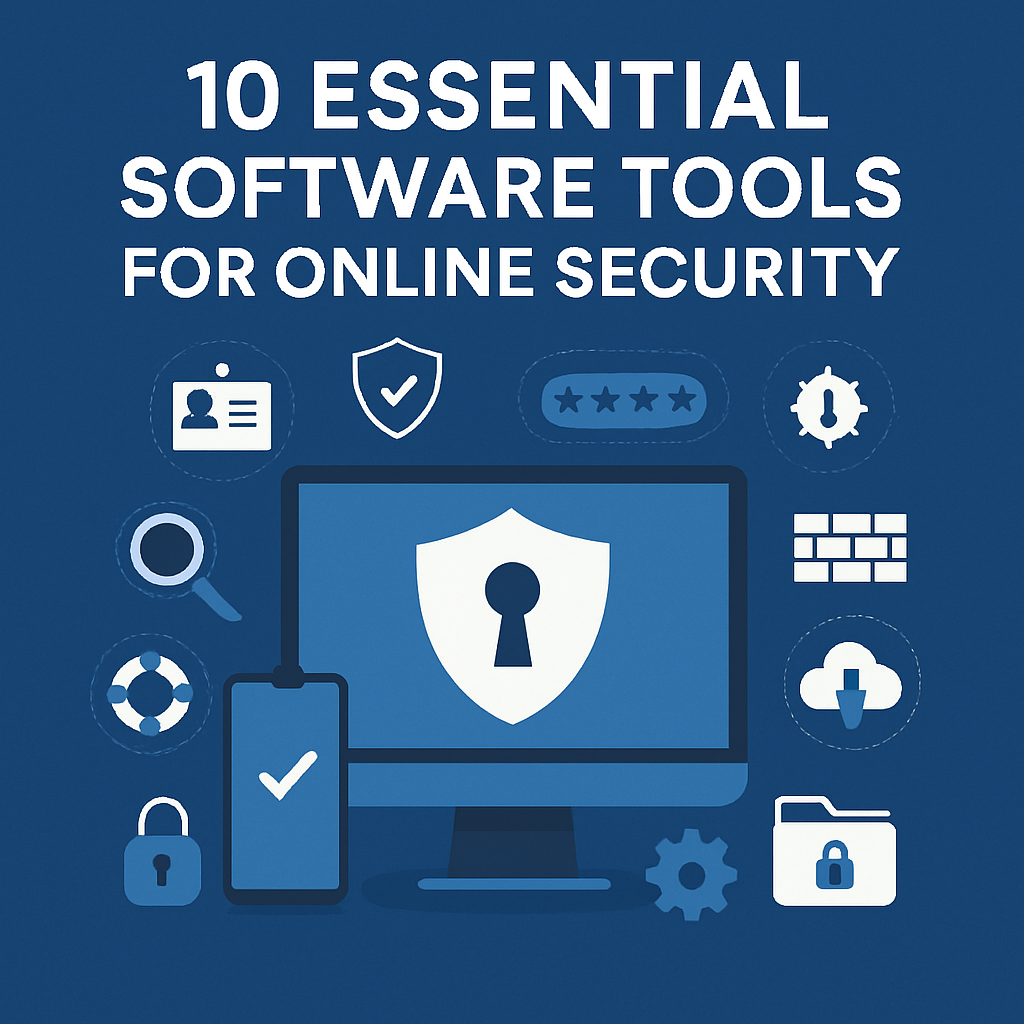
To keep your personal and business information safe, you need more than just strong passwords. You need a group of specialized software tools that work together to find threats, keep sensitive data safe, and keep bad people away. This long article will go over 10 important software tools that can help keep you safe online. We’ll talk about their main features, the best examples of each, how to use them, and how to get the most out of them. At the end of this guide, you’ll not only know which tools to use, but also how to use them in a full cybersecurity plan.
1. Password Managers
Why You Need Them:
People know that passwords they make are very weak. Credential stuffing and brute-force attacks are surprisingly easy because most people use the same password for more than one account. A password manager creates, saves, and fills in long, complicated passwords that are unique to each site. Hackers will have a lot harder time getting into your accounts if you do this.
Things to Keep an Eye On:
- Zero-knowledge architecture means that the vendor can’t even get into your vault.
- Works on all platforms, including desktop, mobile, and browser add-ons.
- How to share passwords safely: For family or team accounts.
- Pick trustworthy people who can get into your vault in case of an emergency.
- Auditing and breach alerts: Find passwords that are too weak, too common, or stolen.
Best Options:
- 1Password is easy to use, has strong sharing, and a Travel Mode for crossing borders.
- Bitwarden (open source): You can host it yourself, and the free version is great.
- Dashlane has a built-in VPN (see Section 3) and keeps an eye on the dark web.
How to Make It Happen:
- You need to move your vault. To do this, export your old passwords from your browsers and import them into your new manager.
- To make it even safer, turn on Multi-Factor Authentication (MFA) on the manager itself.
- Use the built-in audit tools every month to fix weak or duplicate passwords.
2. Suites of antivirus and anti-malware
Why You Should Have Them:
Ransomware, trojans, and spyware are all types of malicious software that can steal your files, spy on what you type, or even add your computer to a botnet. An active antivirus (AV) engine looks for known threats in real time and on demand. Heuristic analysis, on the other hand, looks for strange behavior to find zero-day exploits.
What to Look For:
- Scanning in real time: Files that are bad are put in quarantine right away.
- Behavioral analysis: It finds threats you didn’t know about before.
- Cloud updates: quick threat intelligence feeds.
- Doesn’t do much to the system because it doesn’t use much CPU or RAM.
- Web protection: Blocks bad URLs at the level of the browser.
Best Options:
- Bitdefender Total Security: The best at finding malware without slowing down too much.
- Kaspersky Internet Security: It protects you from phishing and has a firewall for your webcam.
- Malwarebytes Premium: stops ransomware and runs deep scans on demand.
How to make it work:
- Schedule deep scans for once a week when you’re not at work.
- Add apps that you know are safe to a whitelist to cut down on false positives.
- Turn on automatic updates to make sure your virus definitions are always up to date.
3. VPNs, which stands for “virtual private networks,”
Why You Should Have Them:
If you use public Wi-Fi, like at a hotel, airport, or café, other people can see what you’re doing (man-in-the-middle attacks). A VPN encrypts all of your internet traffic, hides your IP address, and keeps your data safe while it is being sent.
Things to Look For:
- No-logs policy: This means that no information about traffic or use is saved.
- OpenVPN, WireGuard®, and IKEv2/IPsec are all examples of protocols that use strong encryption.
- A global server network cuts down on latency and lets you get around geo-restrictions.
- Kill switch: If the VPN connection drops, it stops the internet and stops leaks.
- Works with a lot of devices, like routers, PCs, phones, and even some smart TVs.
Best Options:
- ExpressVPN has fast speeds and TrustedServer RAM-only servers.
- The Double VPN and Onion Over VPN features are both available on NordVPN.
- There is a free tier for ProtonVPN, which is run by CERN scientists.
How to put it into action:
- Before you use public Wi-Fi, make sure to turn on the kill switch.
- For the best speeds, choose servers that are close by.
- When you need them, use servers that are made for specific tasks, like P2P or streaming.
4. Tools for Multi-Factor Authentication (MFA)
Why You Need Them:
Just having passwords isn’t enough anymore. MFA adds “something you have” (like a mobile device or hardware token) to “something you know” (your password) to stop most unauthorized login attempts.
Things to Keep an Eye Out For:
- Time-based One-Time Passwords (TOTP): Google Authenticator and other apps make codes that only work for 30 seconds.
- Push notifications: Simple messages that say “Approve” or “Deny.”
- FIDO2/WebAuthn keys are hardware tokens that protect against phishing, just like YubiKey.
- Backup codes: keep them safe so you can log in quickly when you need to.
Best Choices:
- Authy: Back up to the cloud in an encrypted way and sync across multiple devices.
- Duo Mobile: Push authentication for companies.
- Yubico YubiKey: hardware security keys that are hard to steal.
How to put it into action:
- If you can, turn on MFA for all of your accounts, such as email, banking, social media, and the cloud.
- You can keep backup codes safe by keeping them offline, such as in your password manager’s vault.
- For accounts that are very important, you might want to think about using hardware keys.
5. Firewalls for People
Why You Need Them:
Even if your antivirus is the best, advanced malware may try to connect to command-and-control servers or listen on ports that are open. A personal firewall watches all network traffic that comes in and out and blocks connections that aren’t allowed.
What to Look For:
- You can use application-level rules to decide which programs can connect to the network.
- Outbound protection keeps bad apps from “calling home.”
- It’s easy for people who aren’t tech-savvy to set things up with predefined rule sets.
- Stealth mode: Hides your device on LANs.
The Best Choices:
- The Windows Defender Firewall is free, works well, and is compatible with Windows Security Center.
- TinyWall is a small program that helps you use Windows Firewall more easily.
- Comodo Firewall has HIPS (Host Intrusion Prevention System) and advanced sandboxing.
How to make it happen:
- Choose “Ask” mode first, and then set rules that will last for apps you trust.
- By default, block all incoming connections and then let some services through.
- Look at the rules every three months to get rid of any old exceptions.
6. Encrypting files and disks
Why You Should Have It:
When devices are lost or stolen, data breaches happen a lot. Without the right decryption key, encryption makes your data unreadable. This protects sensitive files even if attackers can get to them in person.
Things to Keep in Mind:
- Full-disk encryption encrypts entire volumes, such as the operating system drive.
- Encryption of folders or containers protects some folders.
- Pre-boot authentication: stops the computer from starting up if you don’t have the right credentials.
- Hardware acceleration: makes performance less affected.
Best Options:
- BitLocker (for Windows Pro and Enterprise) works great with other programs and supports TPM.
- FileVault 2 (macOS): It encrypts the entire disk and lets you get your Apple ID back.
- VeraCrypt (Cross-platform): A free version of TrueCrypt that can hide volumes.
How to put it into action:
- Put your recovery keys in more than one safe place.
- In Windows, turn on TPM and PIN to unlock a disk with two factors.
- Encrypt external drives that you use to back up your files.
7. Safe Browsers and Privacy Extensions
Why You Need Them:
Web browsers are the way to get to the internet, but they are also the most vulnerable because they have security holes that haven’t been fixed and bad websites. A browser that puts privacy and add-ons first can block trackers, scripts, and phishing attempts.
Things to Keep an Eye Out For:
- Automatic updates fix browser bugs that are new.
- Sandboxing: keeps web processes apart.
- Site isolation: stops attacks that happen on more than one site at the same time.
- Built-in protection against being tracked: stops cookies and fingerprinting from other people.
Best Options:
- Mozilla Firefox (with strict settings): Many ways to keep your privacy.
- Brave comes with Tor and blocks ads and trackers by default.
- “Ungoogle” is what you call Chromium without Google integration.
Add-Ons You Can’t Live Without:
- uBlock Origin stops ads and scripts from running.
- HTTPS Everywhere (makes all connections safe)
- Privacy Badger (learning about trackers)
- NoScript (more control over scripts)
How to Do It:
- Allow extensions to update themselves automatically.
- For sensitive tasks like e-banking and casual browsing, use different profiles.
- You should either clear your cookies and caches often or use container tabs.
8. Scanning for vulnerabilities and managing patches
Why You Should Have Them:
One of the most common ways for hackers to get in is through software that is out of date. Vulnerability scanners check your system for known CVEs, missing security updates, and settings that aren’t set up correctly.
What to Look For:
- Full software inventory: Lists all the installed packages.
- Integration with the CVE database marks current major weaknesses.
- Automated patch deployment: It gets updates and installs them.
- Reporting and alerts: Put the most important issues at the top.
Best Options:
- Qualys FreeScan (cloud-based, limited free scans)
- OpenVAS is free software that is part of Greenbone.
- Flexera’s Personal Software Inspector (PSI) is a program that helps you find and fix problems with your software.
How to put it into action:
- Schedule weekly scans for security holes.
- Automate important patches, but make sure to test major updates in a test environment first.
- Make a list of all the servers, desktops, and network devices you own.
9. Backup Options That Are Safe
Why You Should Have Them:
Ransomware can encrypt files on your computer and on the network, but if you have backups that are offline or can’t be changed, you can get your data back without paying criminals. Backing up your files regularly also protects them from hardware failure and accidentally deleting them.
What to Look For:
- Versioning keeps many copies of the past.
- Immutable storage means that malware can’t change or delete it.
- End-to-end encryption keeps backups safe while they are being sent and while they are stored.
- Incremental backups use less space and bandwidth.
- It works with Windows, macOS, Linux, and mobile devices.
Best Options:
- Acronis True Image has built-in protection against ransomware and backups to both your computer and the cloud.
- Backblaze: Unlimited cloud backup for people at a low price.
- Duplicati (open source): Backups to any cloud storage that are encrypted and don’t have copies.
How to put it into action:
- The 3-2-1 rule says that you should have three copies of your data on two different types of media, with one copy kept off-site.
- Every three months, test the restores to make sure the data is safe.
- Don’t mix your backup accounts with your other accounts.
10. Tools to stop ads and keep your information safe
Why You Should Have Them:
Even when you use HTTPS, DNS queries can still leak information about the websites you visit. Malicious or ad-filled domains can slow things down and put your privacy at risk.
What to Look For:
- DNS encryption (DoH/DoT) keeps your searches private from ISPs and people who are spying on the network.
- Malicious domain blocking keeps you from going to sites that are known to be phishing or malware sites.
- Blocking ads and trackers makes pages load faster and keeps your information safe.
- You can protect yourself in the way that works best for you with custom blocklists.
The best choices are:
- NextDNS is a DoH/DoT service with analytics that you can change a lot.
- Cloudflare 1.1.1.1 is a free DNS resolver that puts privacy first. It also has a Warp VPN that you can use if you want.
- Pi-hole (self-hosted): Stops ads and trackers from getting through on the whole network.
How to put it into action:
- Protect the whole house at the router level.
- Use Pi-hole with encrypted upstream DNS for the most privacy.
- Add new threats to your blocklists on a regular basis.
Putting It All Together: Building Your Security Stack
You can’t just install tools to have good security; you also have to integrate, maintain, and keep improving them:
Layered Defense (Defense in Depth):
- Use both external protections, like a VPN or firewall, and endpoint tools, like antivirus or MFA.
Centralized Control:
- A dashboard or management console, like the enterprise edition of Bitdefender or Microsoft Intune, lets you keep an eye on alerts.
Regular Audits and Drills:
- Every three months, do phishing tests, backup restore tests, and scans for vulnerabilities.
How to Teach Users:
- Learn how to spot social engineering and how to keep your passwords safe for yourself and your team.
Make a plan for how to deal with incidents:
- When breaches happen, make a list of the steps you need to take to contain, get rid of, recover from, and look into the situation.
Frequently Asked Questions (FAQs)
- Do I really need all ten kinds of software?
Each tool protects against a different risk, but your needs may be different. You should have at least a password manager, antivirus software, a VPN, multi-factor authentication (MFA), and backups on a regular basis. You can add the rest as your security gets better. - Can free versions protect me just as well as paid ones?
Free tiers, like Bitwarden, Backblaze, and Cloudflare DNS, offer good basic protection. However, paid plans offer advanced features like breach monitoring, priority support, and better performance that professionals and businesses often need. - How often do I need to change or update these tools?
You should install software updates right away, especially those that fix security holes. Every year, check your toolset to make sure you’re using the best tools for major version upgrades or license renewals. - What happens if two tools do the same thing?
It’s fine for some things to be the same, like Dashlane’s VPN and a separate VPN. But don’t do things that waste resources without giving them real value. Choose tools that work well together and let you control everything from one place when you can. - How can I keep ransomware from getting into my backups?
Make sure you have at least one backup copy that is not on your computer or in a cloud storage space that can be changed. When backup snapshots are stored in a way that can’t be changed, not even an administrator or malware can delete or encrypt them. - Is antivirus that works in a web browser enough?
You can use browser extensions to keep you from going to dangerous sites, but they can’t stop malware from getting into your system or being on your computer when you’re not connected to the internet. Always use a full antivirus program with them. - Is it possible for me to host all of these tools?
You can host tools like Bitwarden, Pi-hole, and OpenVAS on your own server. This gives you the most control, but you’ll also have to set it up, keep it up to date, and make sure it’s safe. So, to start, think about how good you are with computers. - How can I check to see if my security tools are working?
Keep track of things like how many threats were found, how quickly patches are applied, how long it takes to find and deal with incidents, and the results of regular penetration tests or red-team exercises.
Final Thoughts
You can’t just set and forget your online security; you have to keep an eye on it all the time and use a variety of tools. By using a password manager, antivirus suite, VPN, MFA, firewall, encryption, secure browser, vulnerability scanner, strong backup, and a privacy-focused DNS/ad blocker, you can protect yourself from the threats that are always changing.
Make sure to use these tools as part of a single plan. Set up automatic patch management, plan regular security audits, teach users how to do things right, and keep your incident response plan up to date. If you use these ten tools wisely and check them often, they will not only keep your data safe.
References
- “Cybercrime to Cost the World $8 Trillion Annually by 2025,” Cybersecurity Ventures.
https://cybersecurityventures.com/cybercrime-damages-6-trillion-by-2021/ - “NIST Cybersecurity Framework,” National Institute of Standards and Technology (NIST).
https://www.nist.gov/cyberframework - “CISA – Cybersecurity & Infrastructure Security Agency,” U.S. Department of Homeland Security.
https://www.cisa.gov - “Top Password Managers of 2025,” PCMag.
https://www.pcmag.com/picks/the-best-password-managers - “Best VPN Services of 2025,” Tom’s Guide.
https://www.tomsguide.com/best-picks/best-vpn - “Multi-Factor Authentication (MFA): What It Is and Why It Matters,” Microsoft Docs.
https://docs.microsoft.com/security/multi-factor-authentication - “The 3-2-1 Backup Rule Explained,” Backblaze.
https://www.backblaze.com/blog/the-3-2-1-backup-strategy/ - “VeraCrypt Documentation,” VeraCrypt Foundation.
https://www.veracrypt.fr/en/Documentation.html